Accessing and Managing Your Study Calendar and Video Meetings as a Participant
Calendar
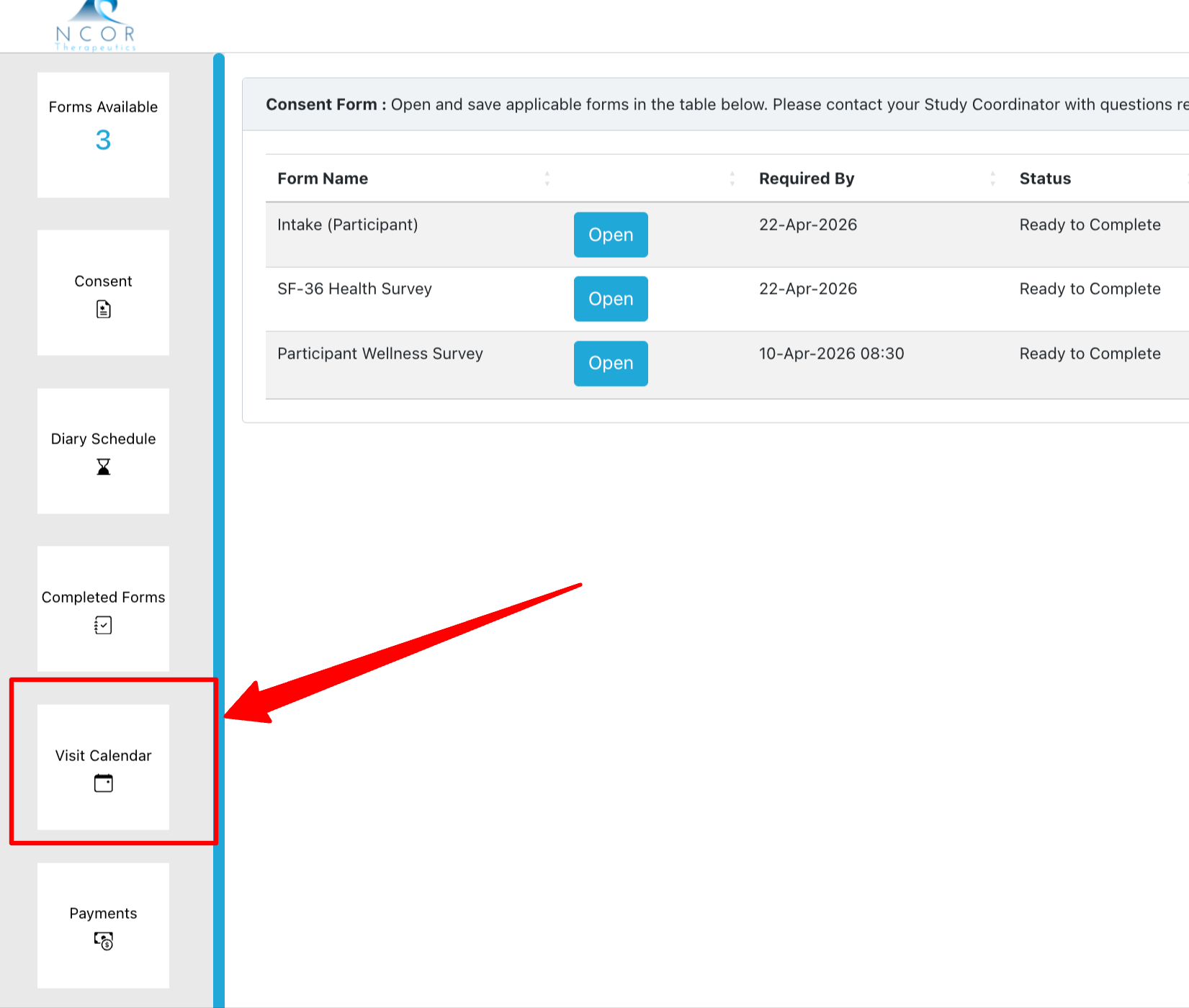
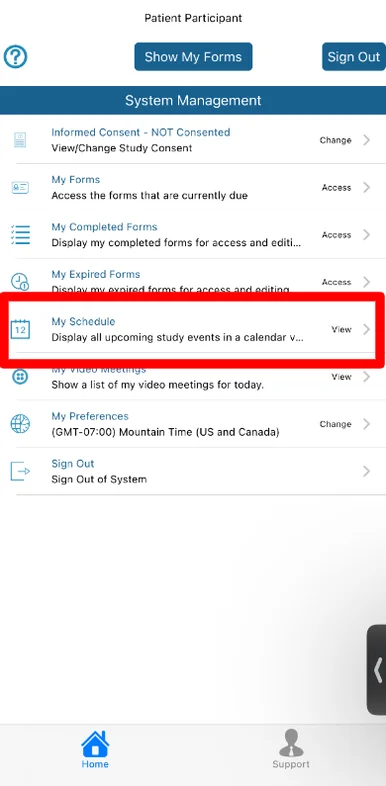
If your study is enabled with an option to view your study calendar, an option will appear in the menu as shown here:
Web | App |
|---|---|
|
|
If an event is scheduled for the current day, it will show immediately.
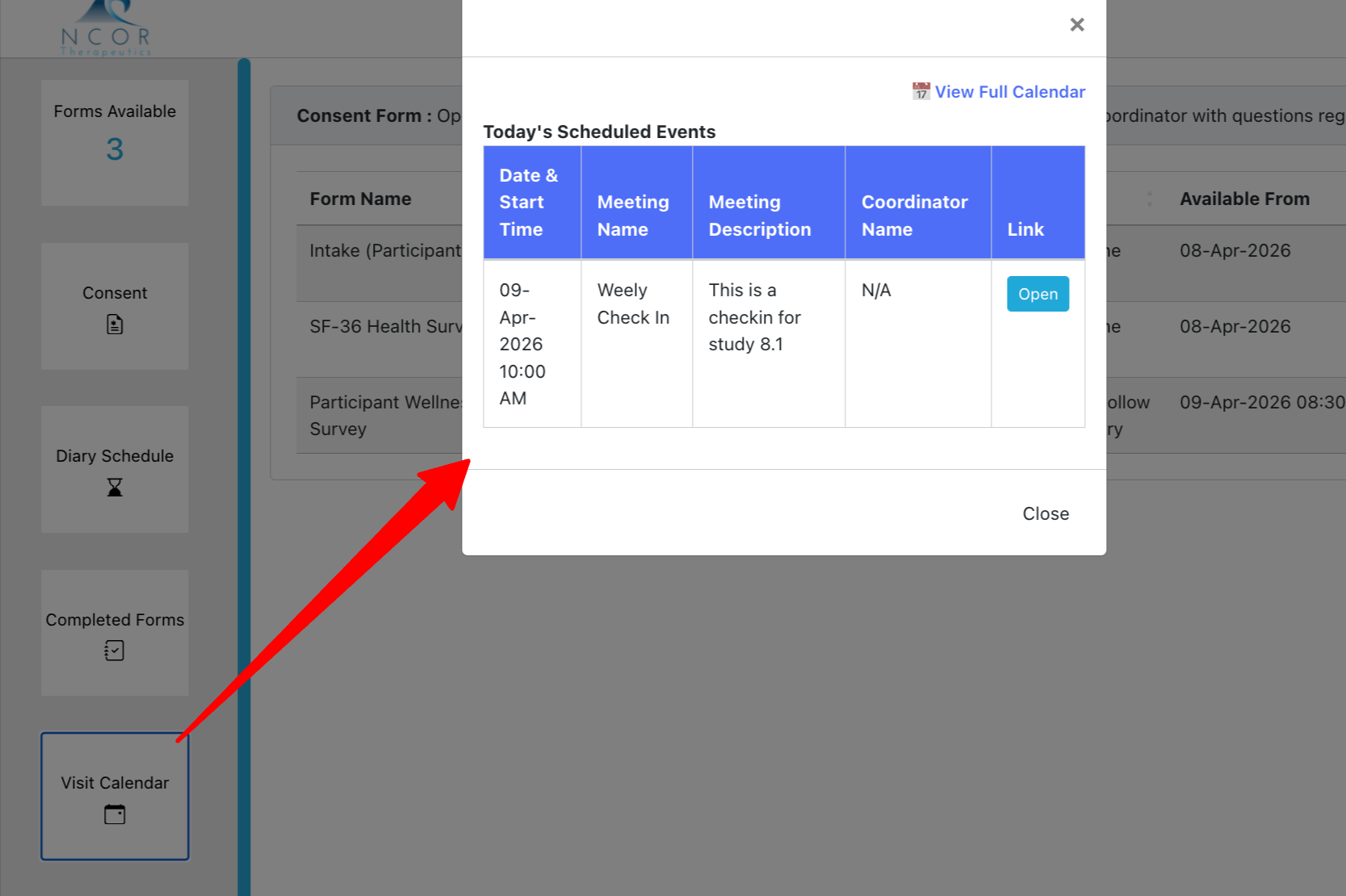
The full calendar can also be viewed.
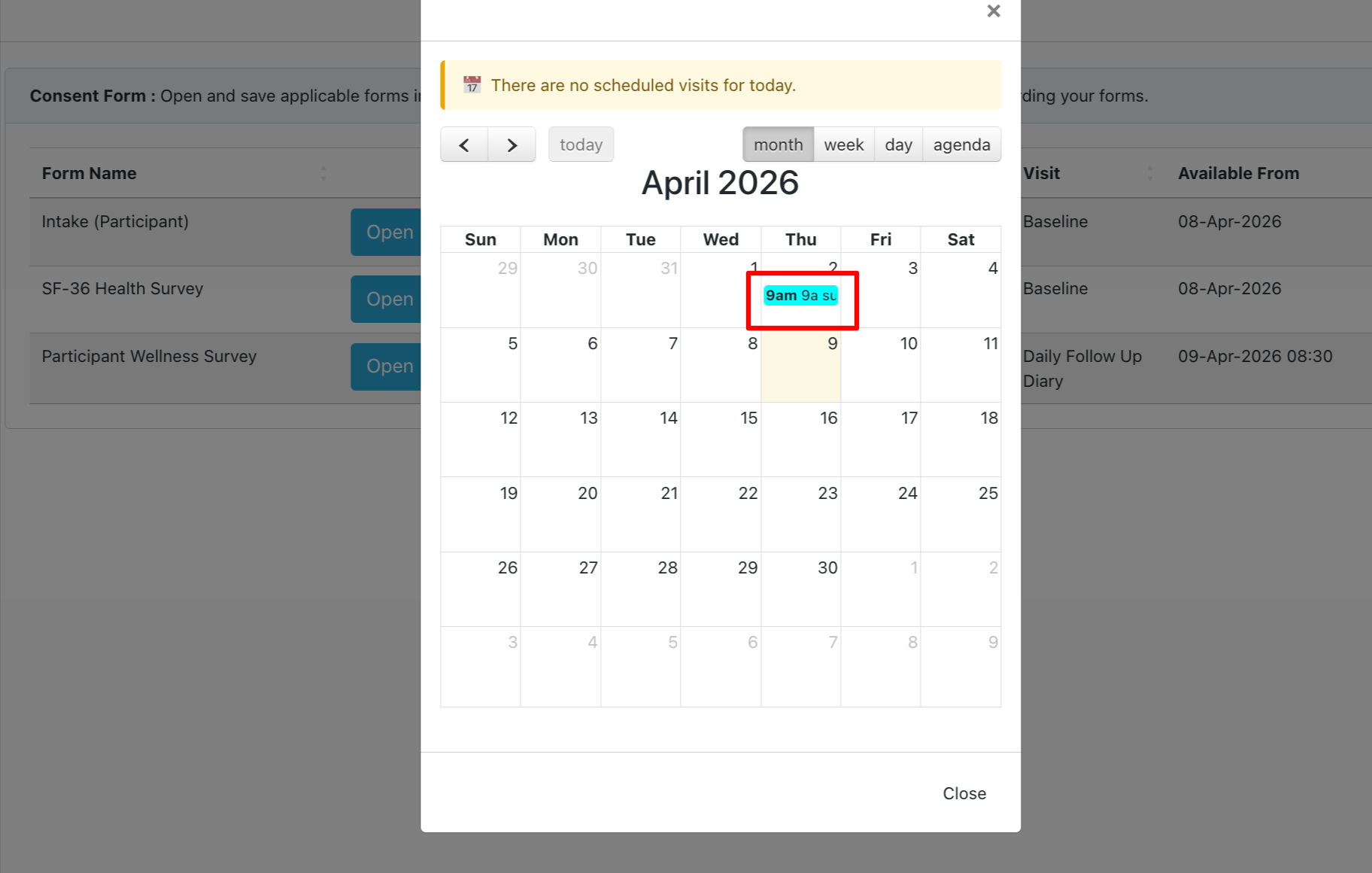
If there is a virtual web meeting as part of the event, the meeting can be opened from the calendar. Continue reading about video meetings/sessions.
Video Sessions
Video sessions with your study Coordinator can be accessed from within the calendar event itself, or from the main menu if there is already a session opened and awaiting you to join.
App | Web |
|---|---|
|
|
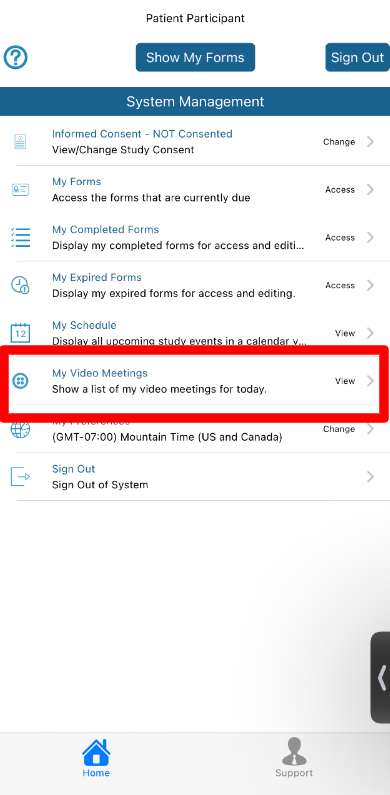
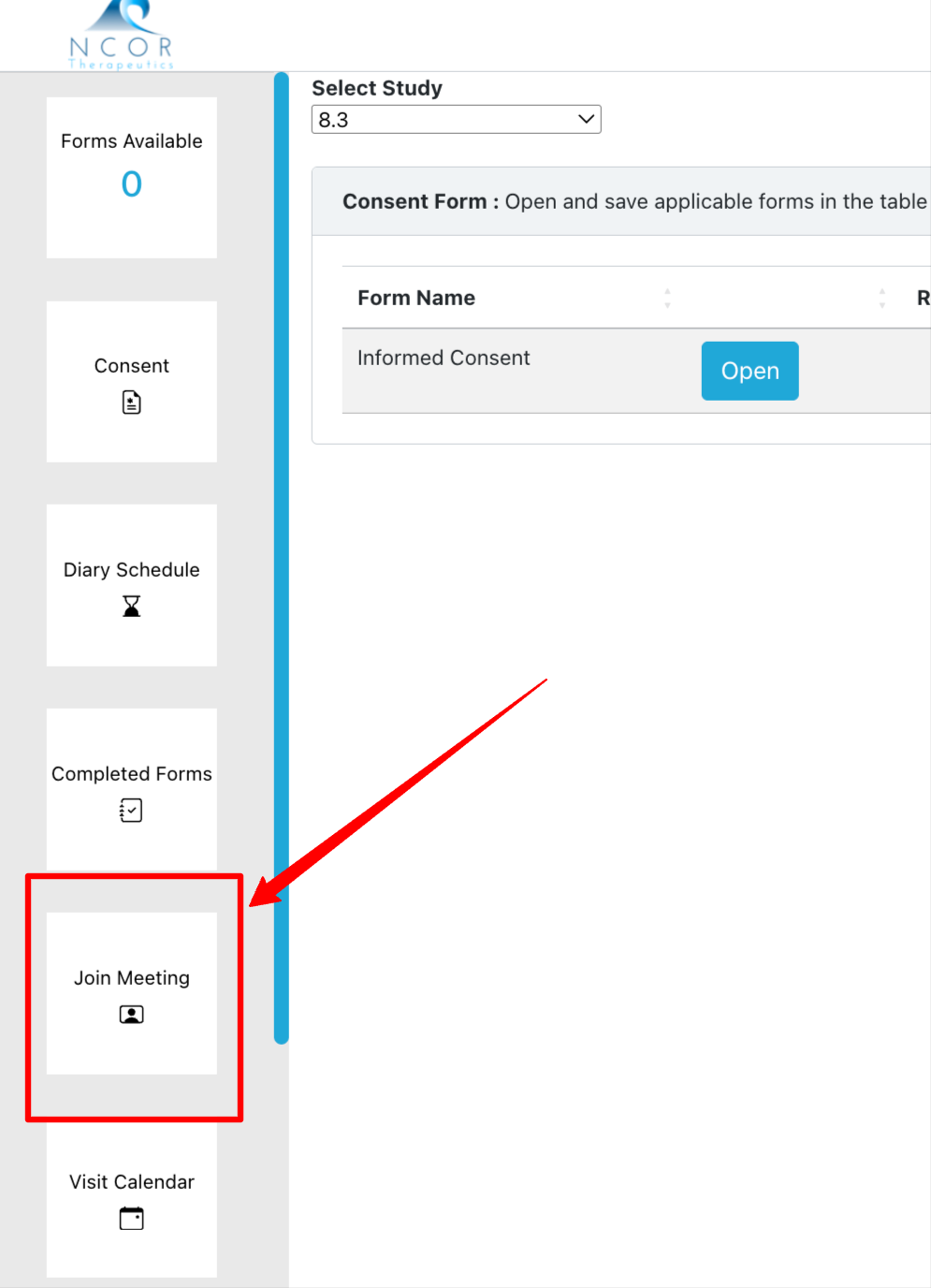
If prompted, enter your name for the other party to see who is attending the video session.
Troubleshooting audio and video
Follow these steps in order until the issue is resolved.
1. Verify audio volume is turned up and the device is not connected to another audio device
2. If using a bluetooth or external audio device, verify it does not have mute enabled and the audio is turned up
3. Check the device permissions have given access to the microphone and camera. Here's how it looks on iOS.
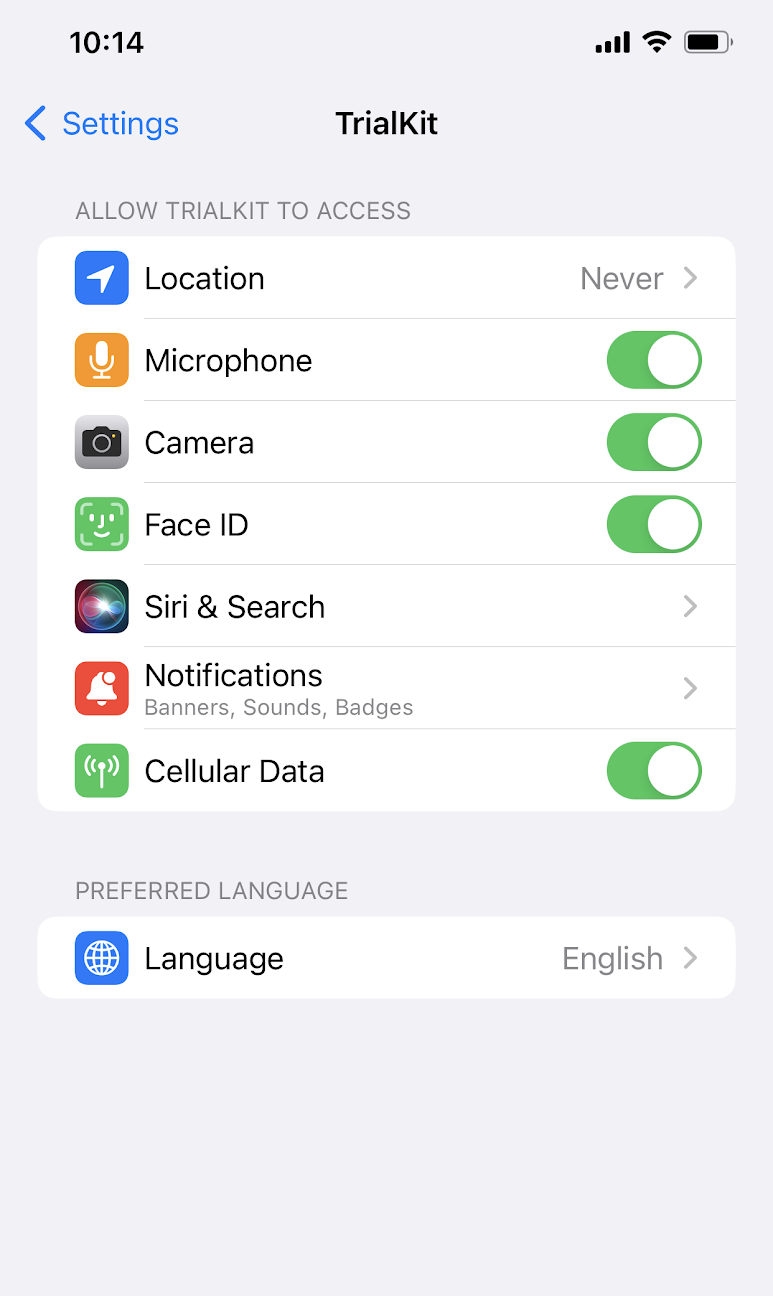
Read more here about access app permissions for:
4. If none of the above steps work, switch to another device. For example, if audio and/or video is not working on your mobile app, open the web browser on your mobile device to access TrialKit URL (Participant.trialkit.com) and attempt to open the video session from there.