Saving Forms to Libraries for Safekeeping or Reuse
Form libraries are containers for storing forms, for the purpose of copying, reusing in other studies, or just safekeeping in a validated state for reference.
There are two types of form libraries - Public and Private.
Public libraries are created and managed by TrialKit. The forms in them are accessible to any study to copy from.
Private libraries exist only within a given Host account, and are created and managed by a Host Administrator. These can be imported into or exported from, by any Study Administrator on that host.
Creating A Private Library
To create a library, navigate to Website Host in the menu bar and select "Form Library Manager".
.png "image(690).png")
Add a new library with a name. This will be specific to the current host.
.png "image(691).png")
Importing Forms
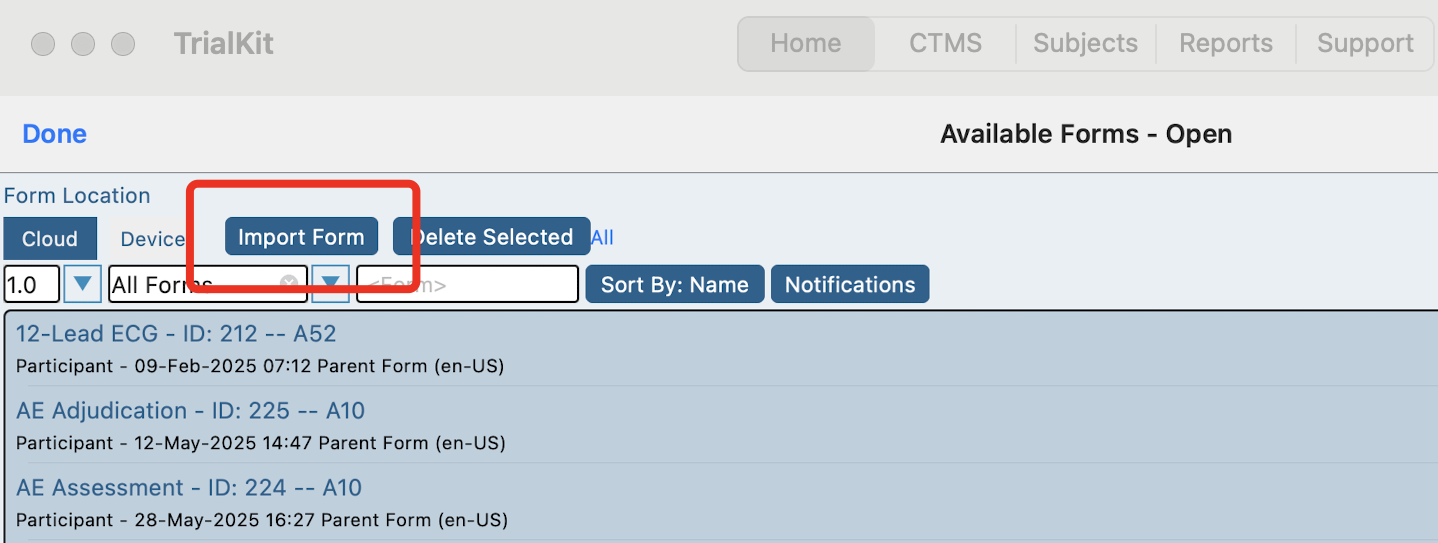
From the form builder, form libraries can be accessed via the Import Form button.
From the next window, use the "Select" button to import an individual form, or use the checkboxes to import multiple.
.png "image(693).png")
The table contains the following information:
Form Name – Name of the Saved Form.
Form Type – Type of Form created in the Form Builder application.
Source – The related Sponsor/Study to which the form is related.
Owner – The Name of the User who created the Form.
Validated – Gives the Status of a Form. Forms that are created in the Website Host Form Builder (User, Site, Study forms) are not validated forms and show a validated status of Not Applicable. However, Subject Forms show a status of either not validated or validated. When a Subject Form is displayed in the Import Form Library, the validated column shows the Status of the Form, the Date of Validation, and who validated the form.
Note
When importing forms, only import forms that are form types created or used at the current level (Host or Study). For example, if a user wants to Import a Subject Form into the Website Host Level Form Builder, the Form will not display in the Website Host Level applications or Study Level applications. Read more about form types to better understand how these levels work.
Exporting Forms
Forms are exported to Form Libraries from the Form Builder application by clicking the Export control in the forms row of the Existing Forms Data Table, as shown in the figure below.
.png "image(695).png")
Clicking the Export control opens a pop-up window that allows the user to export the form to a Private Form Library so it can be reused by other users on studies in the same host.
.png "image(696).png")
When a Form is exported to a Form Library, all the form's properties, field properties, conditional actions, and the forms status are exported to the library.
Exporting and Importing Via the App
When the same process above is done via the app, the library will not be host-specific. Instead they will be User-specific. This means that any form exported to the library, will only be seen by the same user in other hosts or studies. This has the added benefit of copying forms across other hosts.
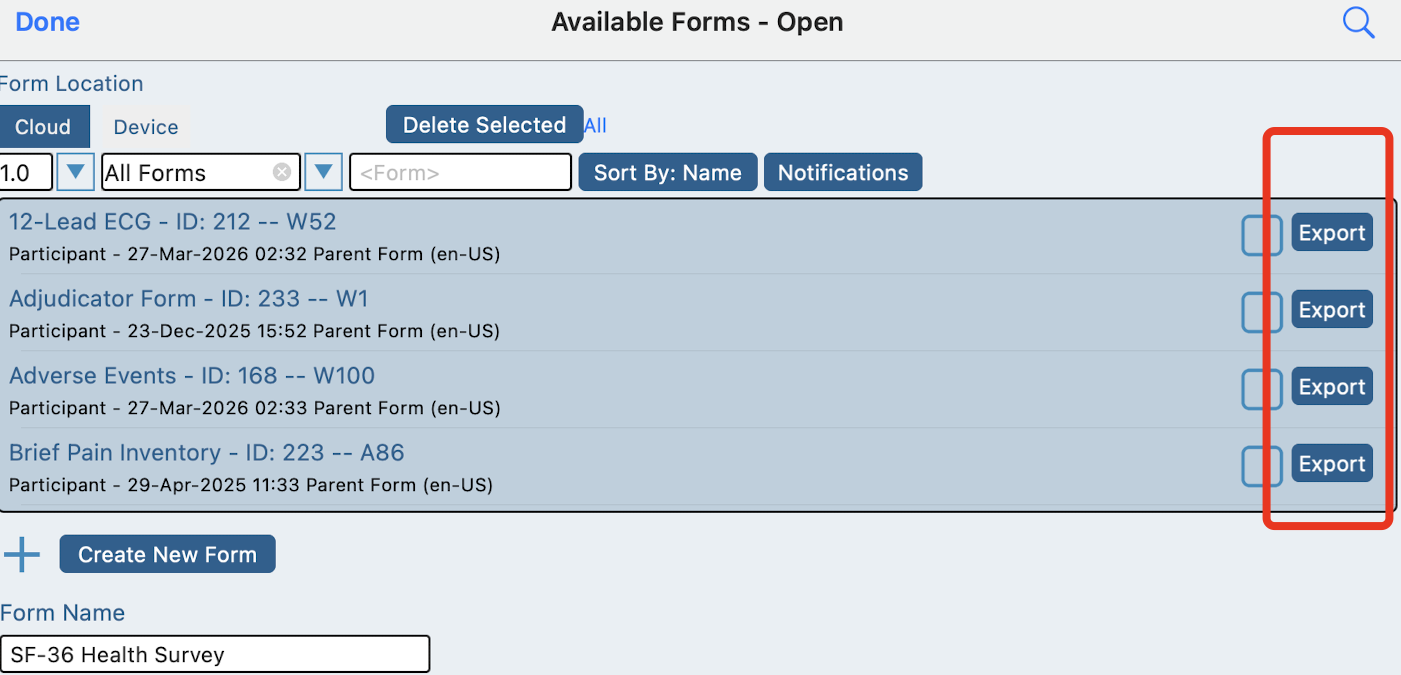
Export from the form manager:
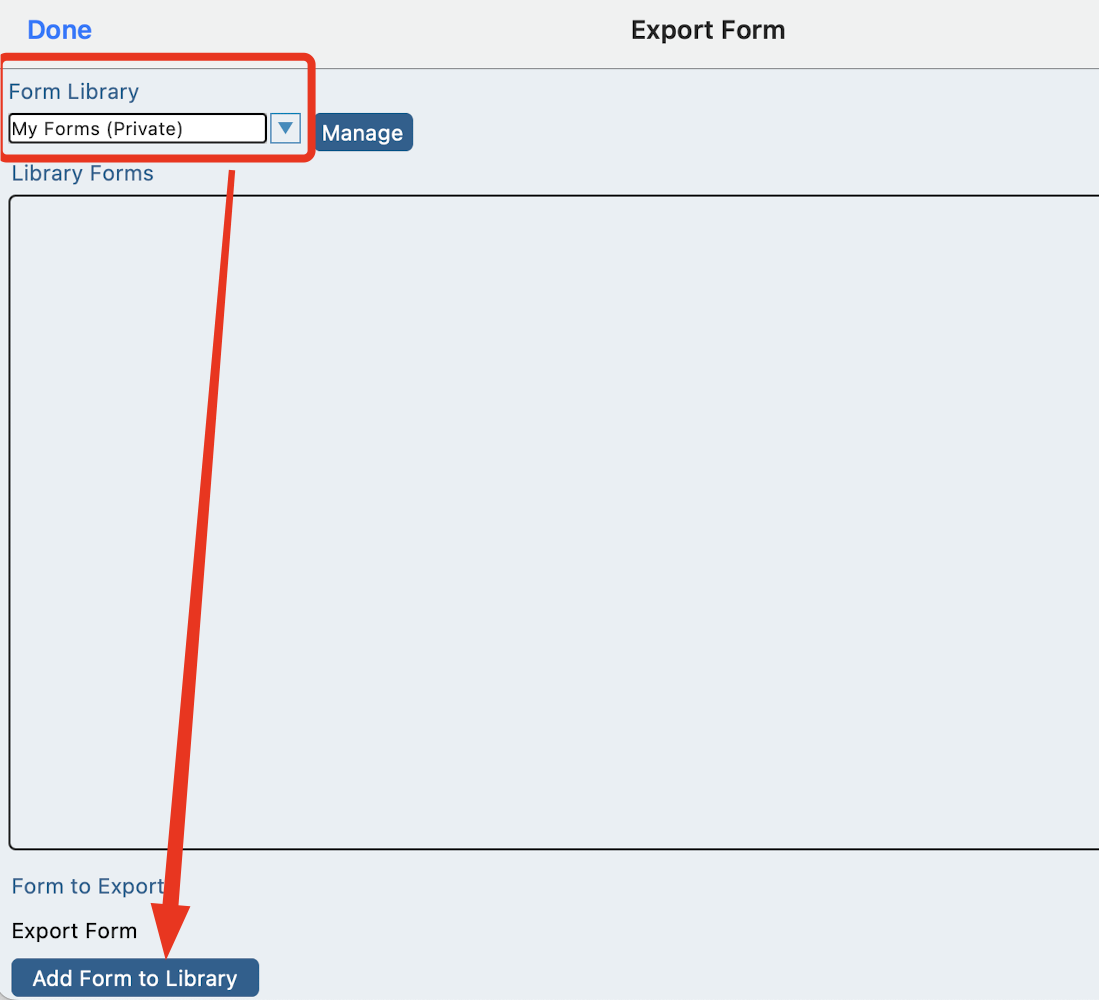
Select a destination library and Add the form.
Lastly, navigate to the new host or study and import the form:
Copying and Pasting the content of a form
If a form needs to be quickly replicated to another study, but not necessarily stored in a form library for long term use, Copy and paste is a great way to accomplish this.
This can only be done via the App form builder at this time.
Open the form you want to copy and select all the content on the form (note, this only works one tab at a time in case the form has multiple tabs):
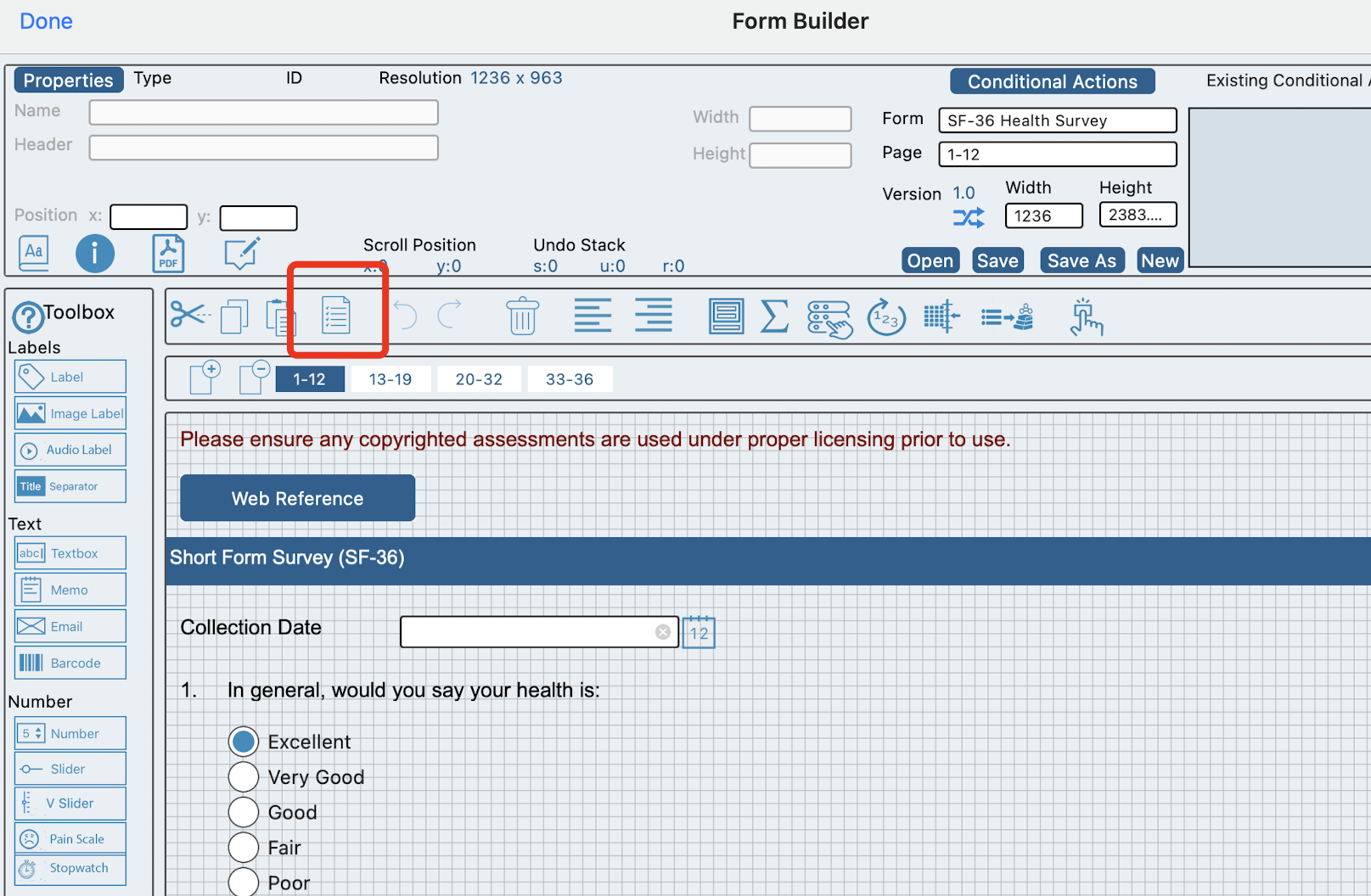
Now Tap the Copy button: 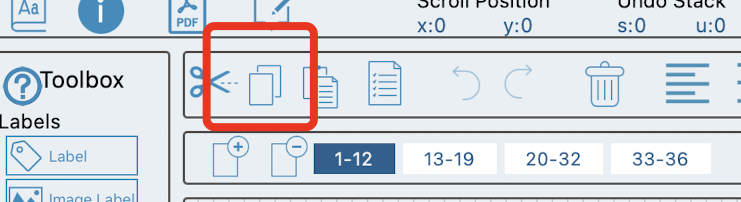
Now open the new study where the content needs to be placed. If it’s a new form, open a new blank form.
Tap the paste button: 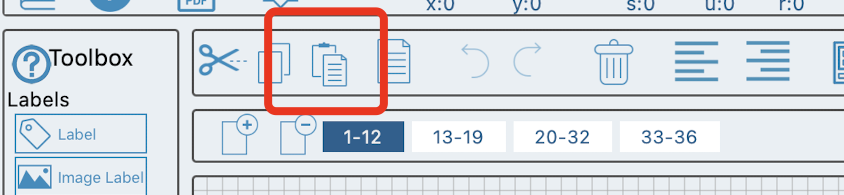
Note, any conditional actions that reference external variables will most likely need to be re-defined.
Replicating a Form in the same study
The Web form builder has a unique tool for creating a replicate of a form, primarily for the purpose of creating child forms. More on that here.