Storing Images to Display in Forms
The image library allows study builders to upload and store images, which can then be used to display within forms. This is applicable on Image labels and Sketch pads.
File format types for images
The image library supports PNG, JPG, and GIF files
Examples of reasons for displaying images on forms:
Visualization of symptoms or conditions
Annotated examples for training or guidance
Reference images for participants or site staff
Simulated data for showing workflows
Site training
Participant instructions directly on a form
Enhanced Data Quality - Clear visual references help:
Reduce user error
Improve consistency in labeling
Ensure alignment across sites and users
Why Image Generation Is Powerful for Sketchpad Fields
Sketchpad fields allow users (patients, clinicians, or researchers) to draw or mark directly on a screen. This is useful with:
Body diagrams
Injury locations
Symptom mapping
Improved Patient Engagement - Instead of relying solely on text:
Patients interact visually
Data capture becomes more intuitive
Compliance and accuracy increase
Real-World Impact in TrialKit
TrialKit is designed to handle large volumes of complex, multi-format data, including images, videos, and documents. By integrating image generation into this ecosystem, teams can:
Automate visual data creation
Reduce manual workload
Improve insight extraction
Enhance study design and execution
Best Practices for Success
To maximize results:
Be specific and structured in prompts
Use iterative refinement
Align generated images with study protocols
Pair AI outputs with validation workflows
Final Thoughts
Image generation within TrialKit AI Analytics is more than a convenience—it’s a strategic advantage.
When combined with Image Label and Sketchpad fields, it transforms how visual data is:
Created
Captured
Interpreted
The result is a faster, smarter, and more scalable approach to clinical and research data collection—one that reduces human error while unlocking deeper insights.
Need help creating an image? Floyd AI can help!
Image generation models introduce a powerful new way to enhance workflows—especially when paired with Image Label fields and Sketchpad fields.
This section breaks down how image generation works, how to use it effectively in TrialKit, and why it can significantly improve both data quality and operational efficiency.
Read more here about accessing and using Floyd AI. After making a prompt for image, tap the the images button.

Like all AI tools in TrialKit, success begins with a well-structured prompt. TrialKit emphasizes that clear, specific instructions improve output accuracy and usefulness.
For image generation, this means:
Describe exactly what you want (e.g., “annotated wound image with highlighted inflammation zones”)
Include context (clinical, behavioral, environmental)
Specify format if needed (diagram, realistic image, labeled sketch)
Accessing the Image Library
Host level permission access to the form library.
It can be accessed under the Host settings on both the web and the mobile app.
Web | App |
|---|---|
A table will display existing image files and a form to upload new images as shown below.
|
The iOS mobile app only allows access to the iCloud files that reside in the iCloud account which is tied to the device (as found in the device settings). To Load images into iCloud, open the iCloud app on the device (iOS only) or via the web. Then open the TrialKit folder. Lastly, open the FB_Image folder to upload a new image file or GIF. The folder named “FB_Image” within the TrialKit folder is where files must be saved so the File list in the image above can access them for uploading into the TrialKit Library. After uploading an image into iCloud and selecting it to load into the image library, if the file name has a .icloud text at the end of the file name, it needs to be downloaded locally on the device before it can be loaded into the image library. This can be done from the iCloud Viewer directly in TrialKit. |
.png "image(912).png")
.png "image(913).png")
.png "image(914).png")
Multi-Study
Images stored here serve as a library across all studies within the host account. Deleting an image from the image library that is currently being used on forms within two different studies will remove that image from the forms in both studies.
Using Images on Forms
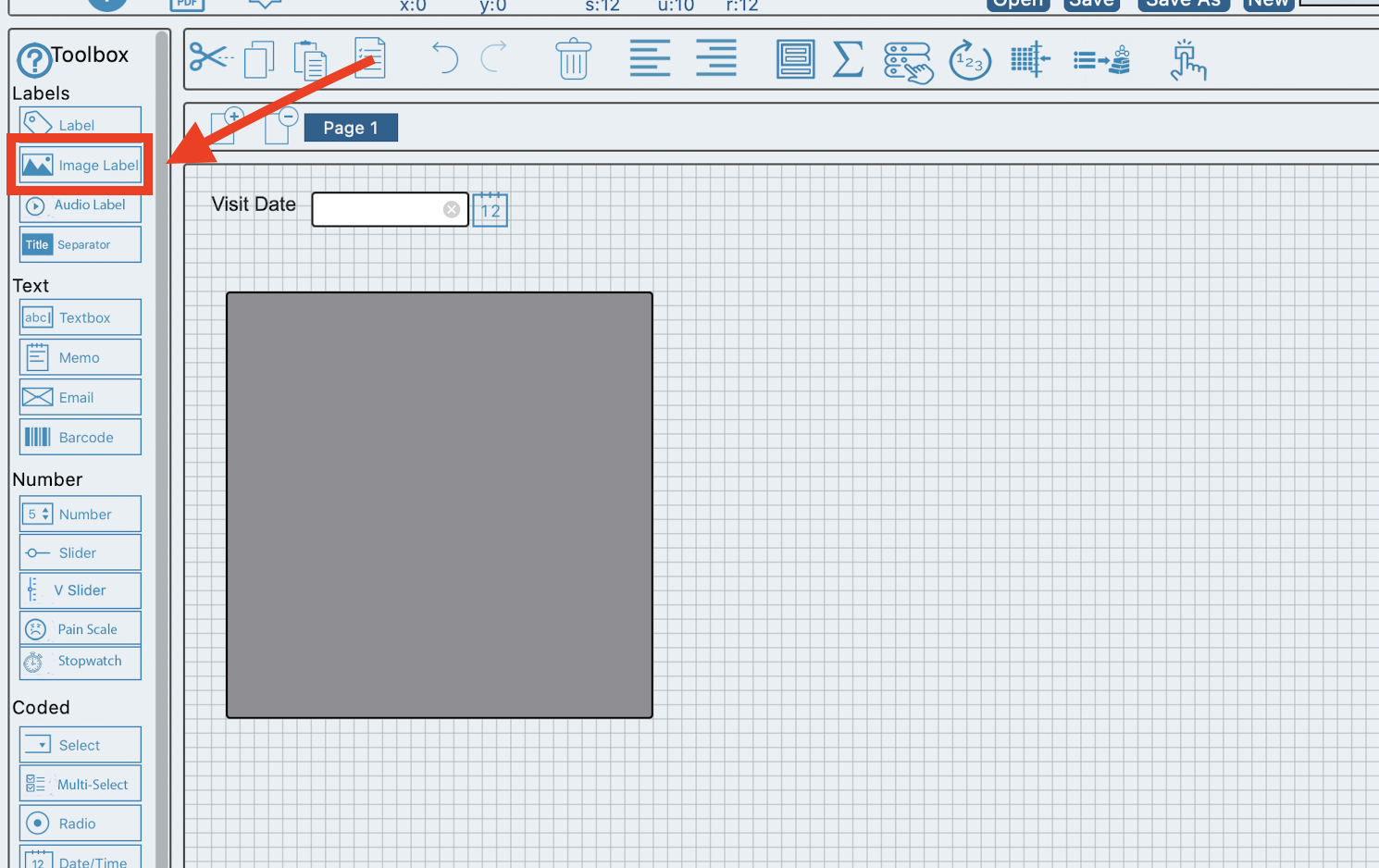
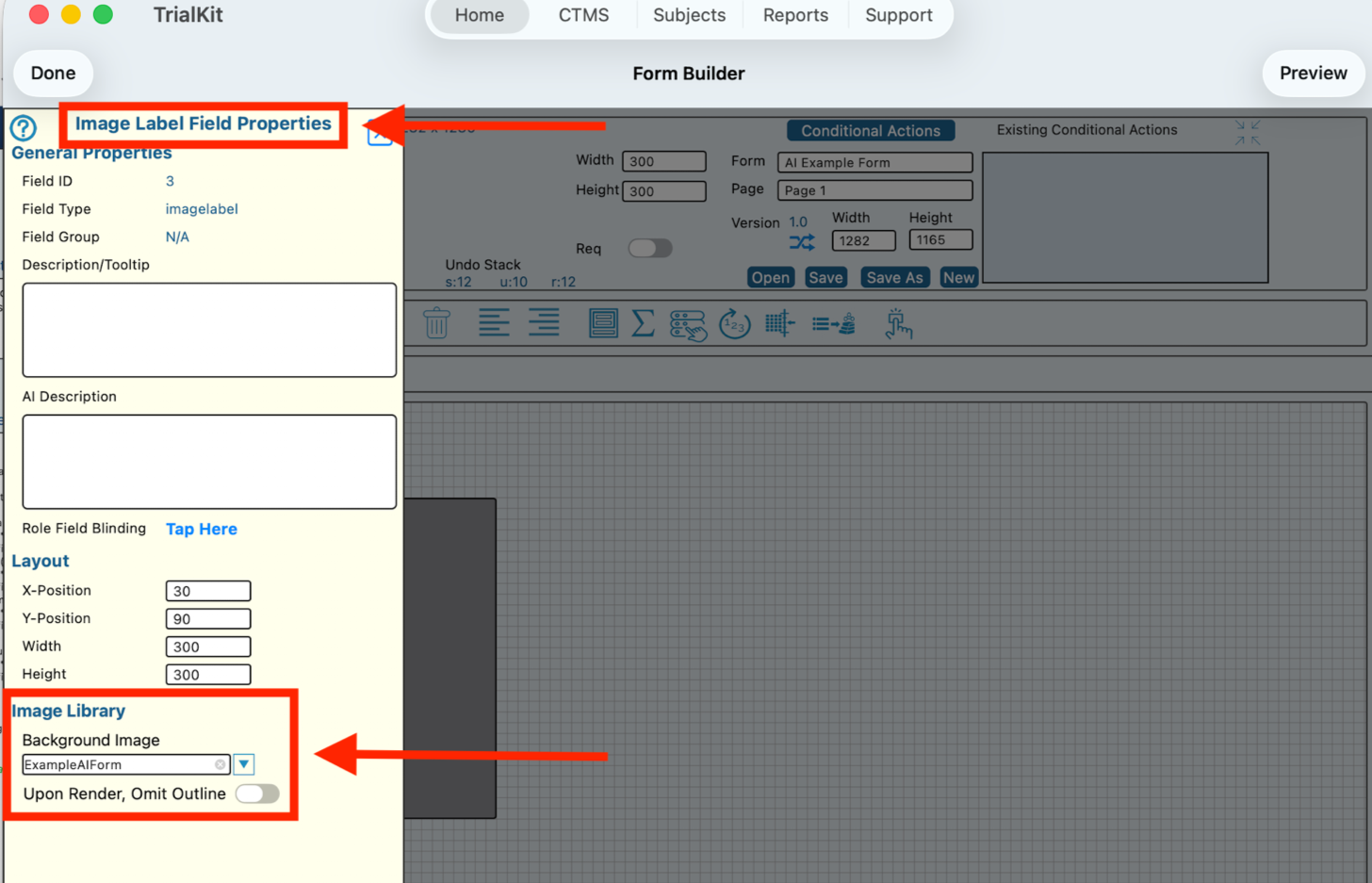
With images in the library, they can then be selected within the field properties for the field types mentioned at the top of this article. Here's an example:
Web | App |
|---|---|
Drag an image label or sketch pad onto the form. Then select the desired image:
|
|
.png "image(915).png")