Site surveys are a way of sending a pre-authored survey form to sites before they are added to the host as actual sites for using in studies. This is before any sites or users have access to TrialKit.
For example, if a Sponsor has a bucket of 30 site locations they want to pre-screen for including in their study, it will be necessary to collect information from them as part of this decision. This tool allows for generating a form and corresponding web URL that can be sent to those sites for submitting the required information.
There are two ways this is done:
A common public URL to a study form, made available via the Sponsors own advertising mediums, to any site to fill out the form if they are interested in being part of the study.
A Site-specific URL, sent by TrialKit, to fill out the form if they are interested in being part of the study.
Configuring A Site Survey for a study
Prerequisite
User has access to Site Management
Create a survey
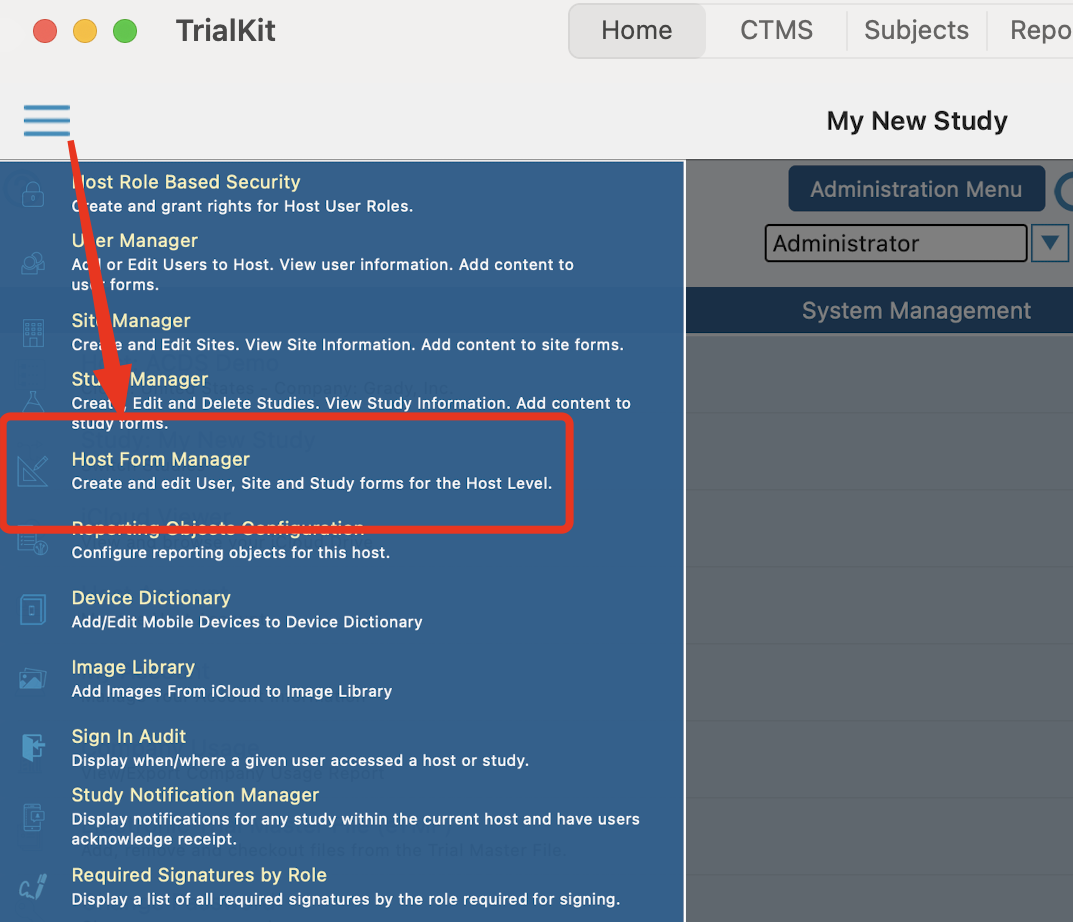
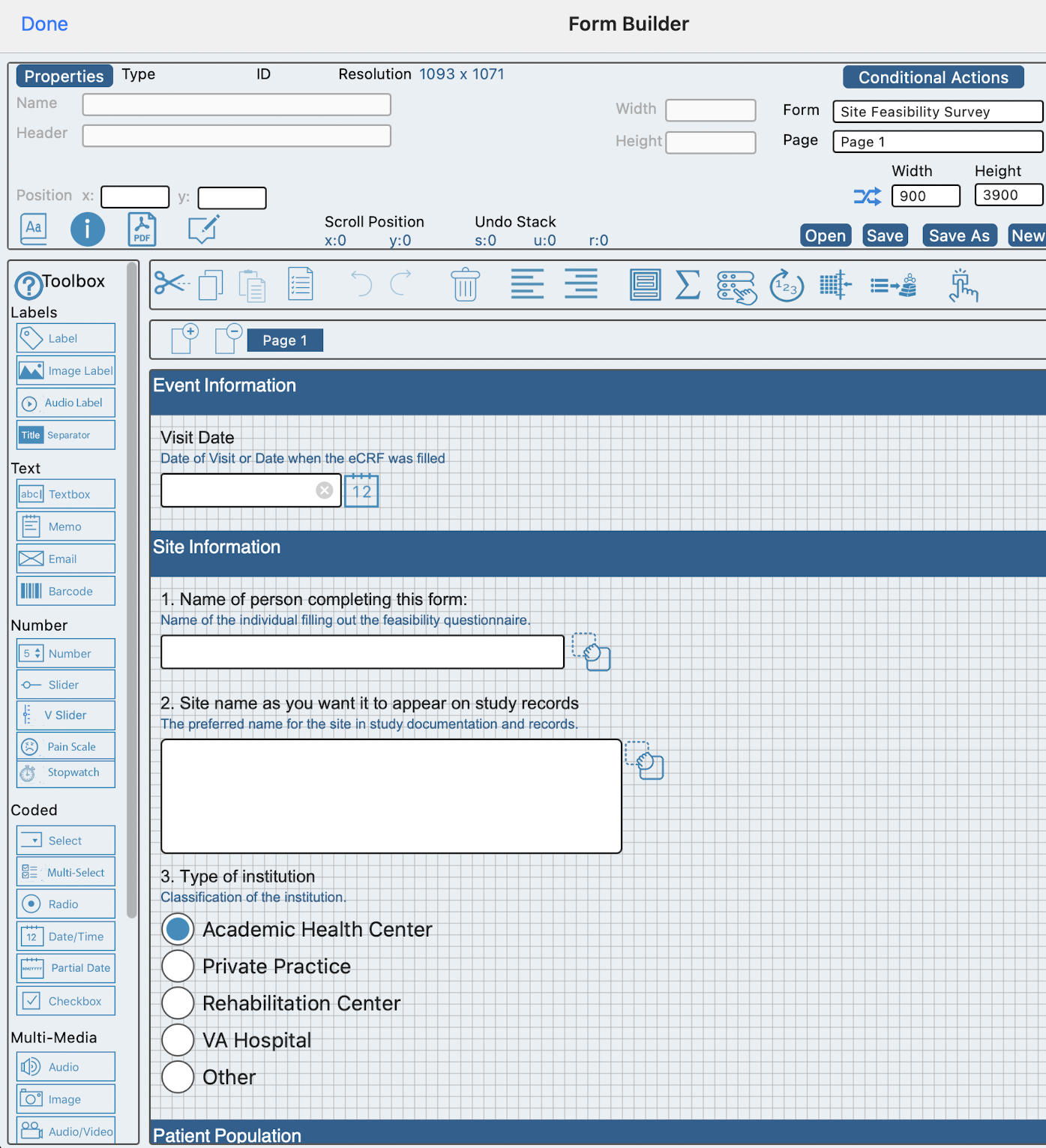
Build a study type form at the host level. This is done using the Host-level form builder.
Here’s an example. This can also be created using TrialKit AI form building tool.
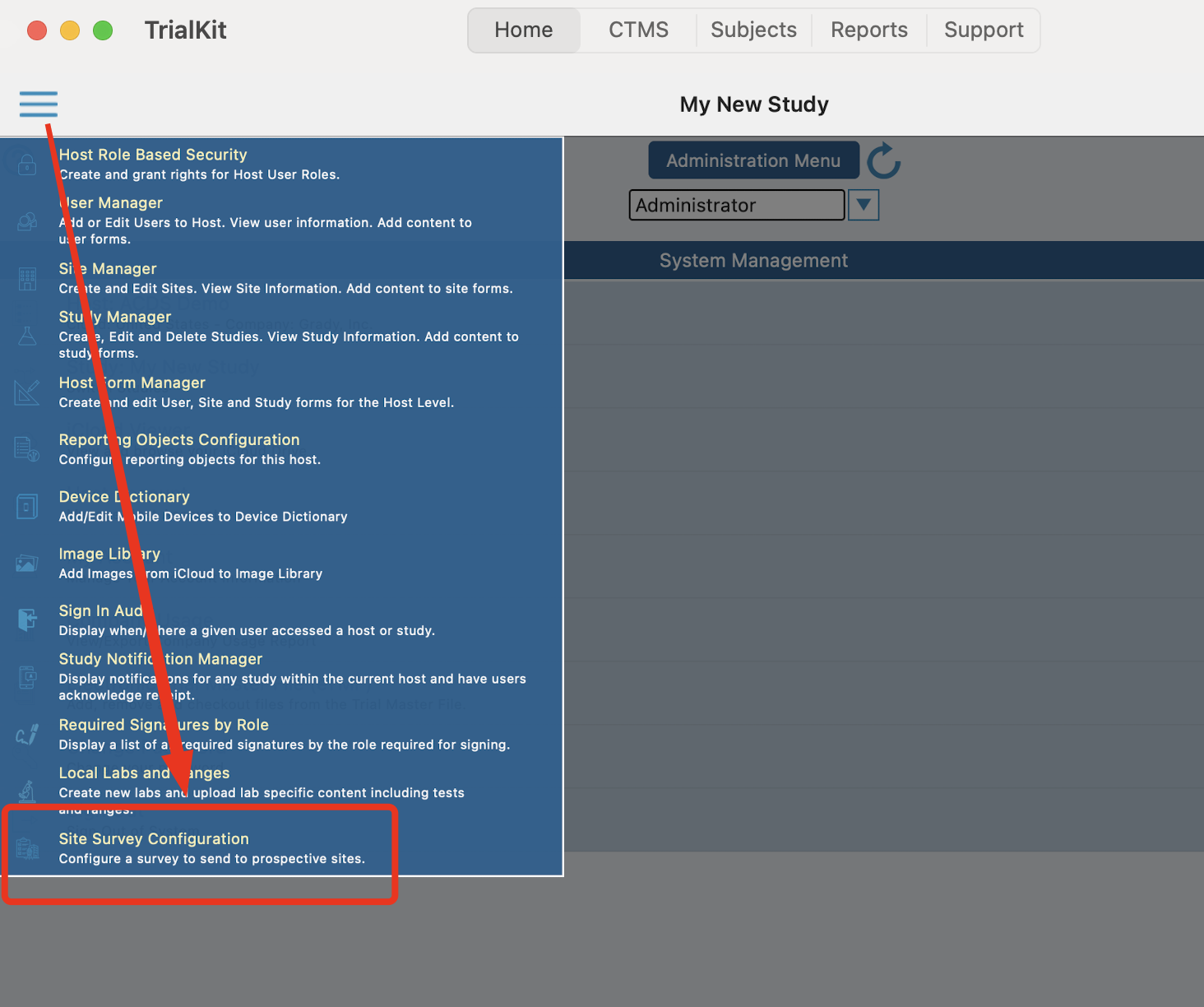
Define a Survey
Open the site survey configuration from the Host settings menu:
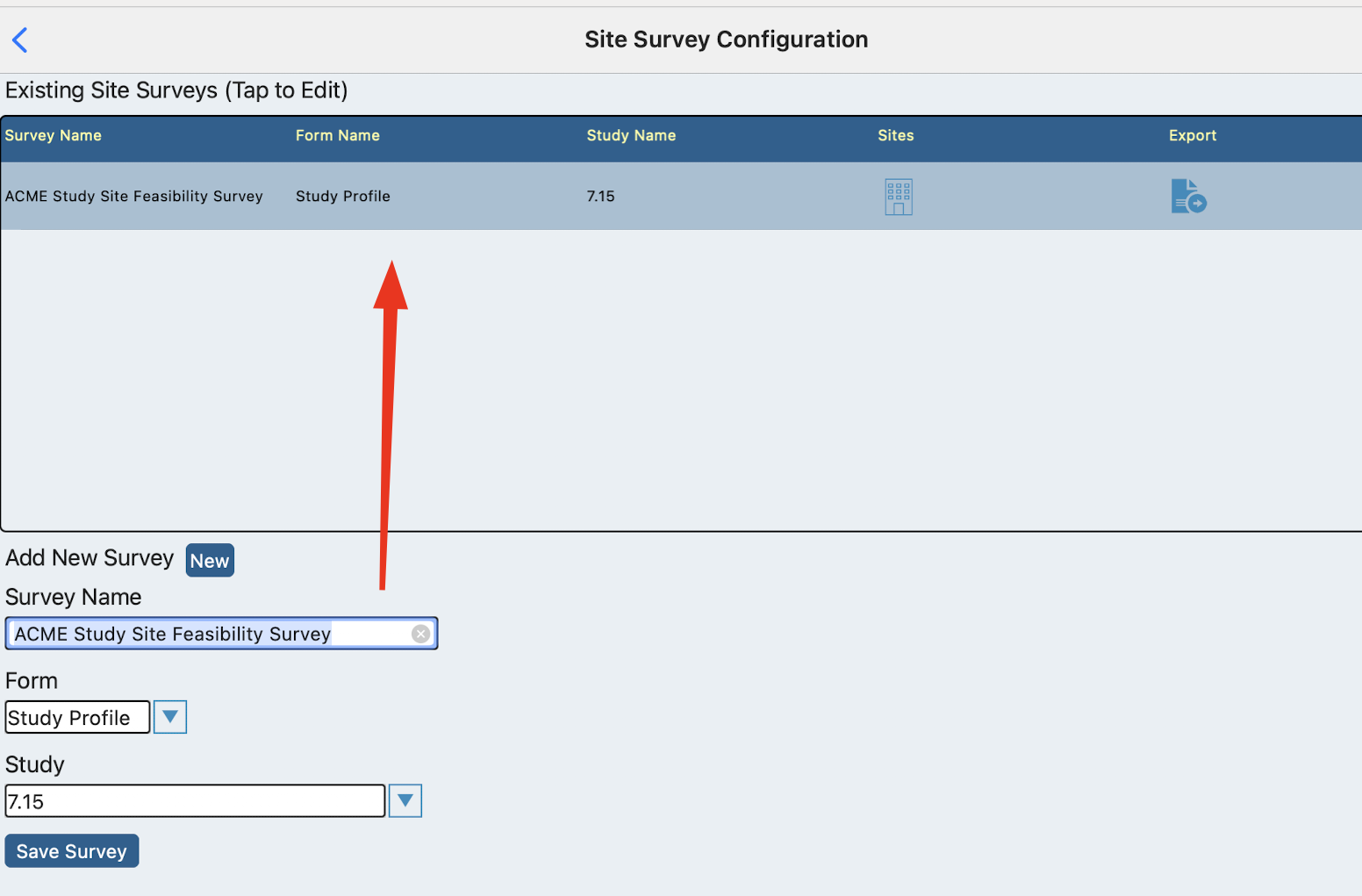
Set up a survey by naming it, assigning a form, and the study it applies to.
Define the Sites
If the sites are known, each one will be defined as a way for Trialkit to track their surveys and give them each their own URL for accessing the survey. This step is not required if the sites are not known. In that case, you can get a common URL for any site to use.
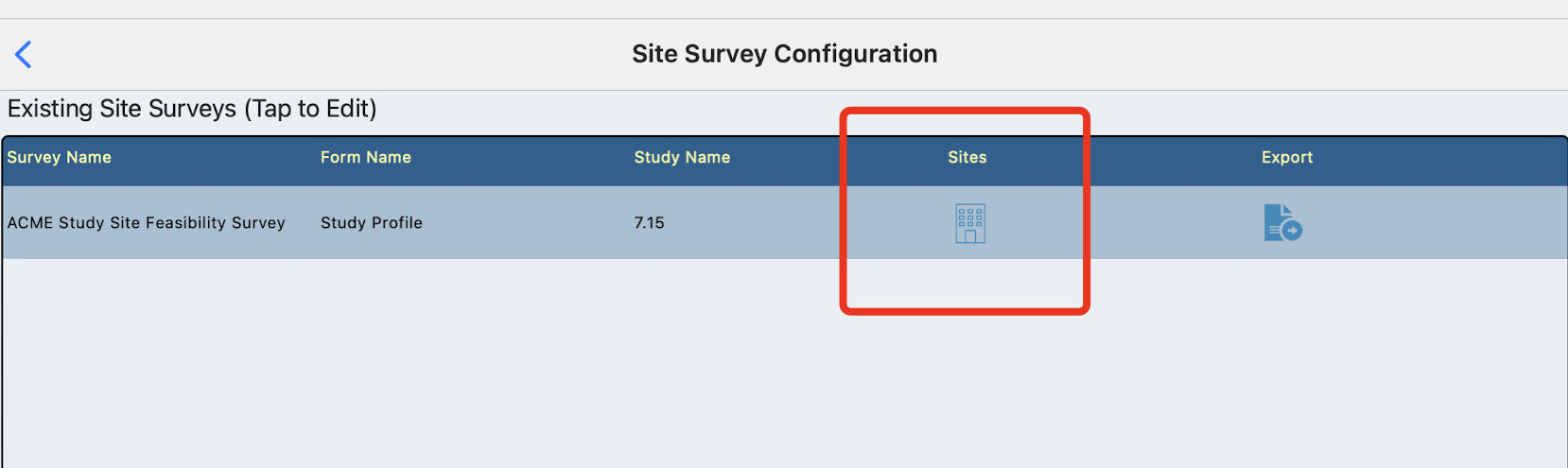
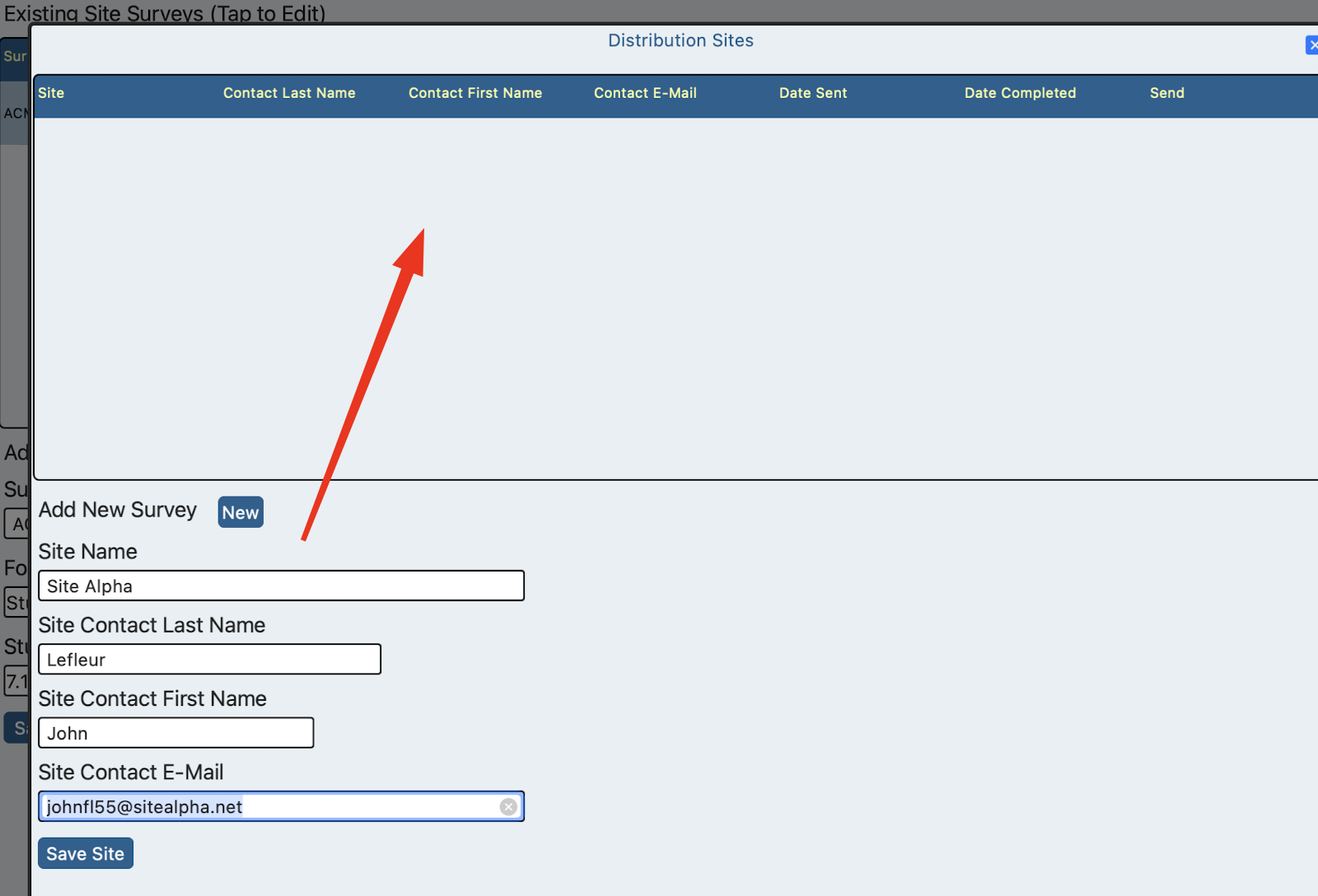
Define all the user names and emails that need to receive the survey. This will populate the table of sites.
Note: These will not be users who have access to TrialKit. This is only for TrialKit to send a one-time URL for completing the survey
Deploying Site Surveys
Tap the Send email button next to each site. This will deploy the message to that email address.
The recipient will use the link they receive to open the survey on their web browser and submit the information.
When the survey is submitted by a site, a notification will be sent to the host Admin user(s). The submitted information can be viewed as Study forms from the Study Manager screen.
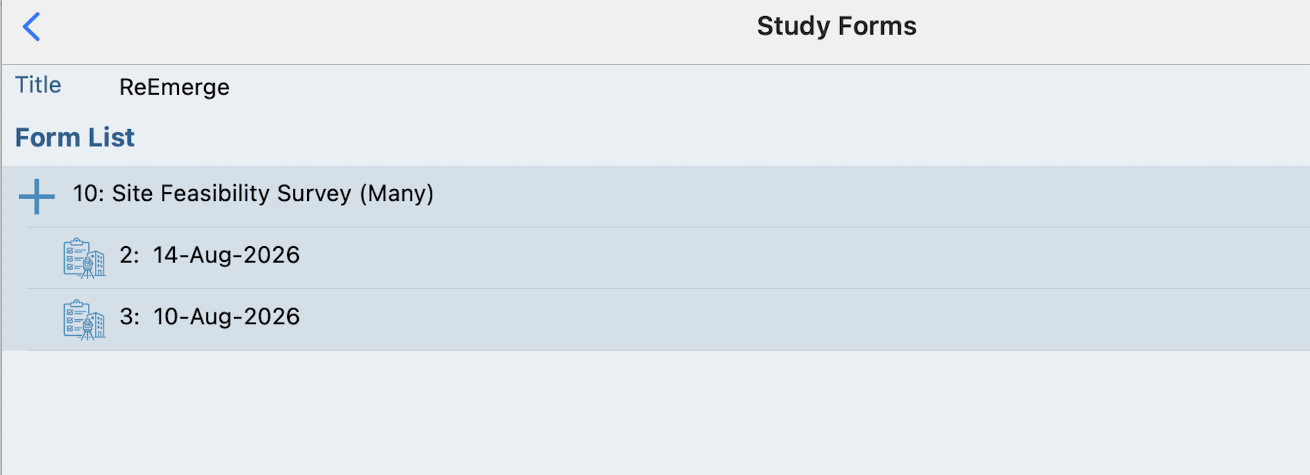
At this stage it is up to the Host Administrator to review the information and add the site to the host and applicable study.