This article describes how local lab PDFs for a subject can be uploaded for TrialKit to consume the data and populate a lab form to minimize manual data entry.
Note: Every local lab has its own format to output lab results on PDFs. While this function has potential to work for any PDF layout, it is optimized for Labcorp and IDEXX layouts.
Uploading local lab PDFs
As PDFs are made available, they can be uploaded and stored in a central location within the trial master file (TMF). This will not initiate any data processing. It is simply a starting point to gather the PDFs where TrialKit can get the data in a later step.
The location within the TMF must be the folder path naming:
Root > Import Lab Files > study_id > site
Path example : AcmePharma > Import Lab Files > 8771 > Sanford Health, where 8771 is the study ID and Sanford health is the site folder. The site folder can be named in any way. It is not used by the import process, but is a way to organize the files.
The naming for each PDF file that gets uploaded in that path must begin with the subject ID, followed by underscore.
PDF name example: “201-0347_baseline”
Anything after the underscore is text that will get imported into the first text field on the form. For example if a user wants to track which visit the data was for, they would want to make sure the text contains a visit name, similar to the example above.
Tip
Uploading of these PDFs into the TMF can be done by either a study Manager or by site Personnel. If site users will be uploading the files on their own, the study Manager will need to grant access to the respective users on each of the site folders.
Lab PDF Importing
At this time, only a study Manager can initiate the data importing process from within the TMF. This is normally done after they have reviewed all the file names for accuracy to ensure the data will get imported to the correct subject.
Prerequisite
A lab form is configured for the study. Read more here.
Once initiated, the system will scan the PDFs to match with the correct subject in the study.
Each PDF will generate a log form based on the log form that is configured to ingest the lab data. In other words if one subject has 3 PDFs, there will be 3 log lines generated.
After matching the subject ID, the system will import 3 key data elements for each file:
Text string as described in the previous section
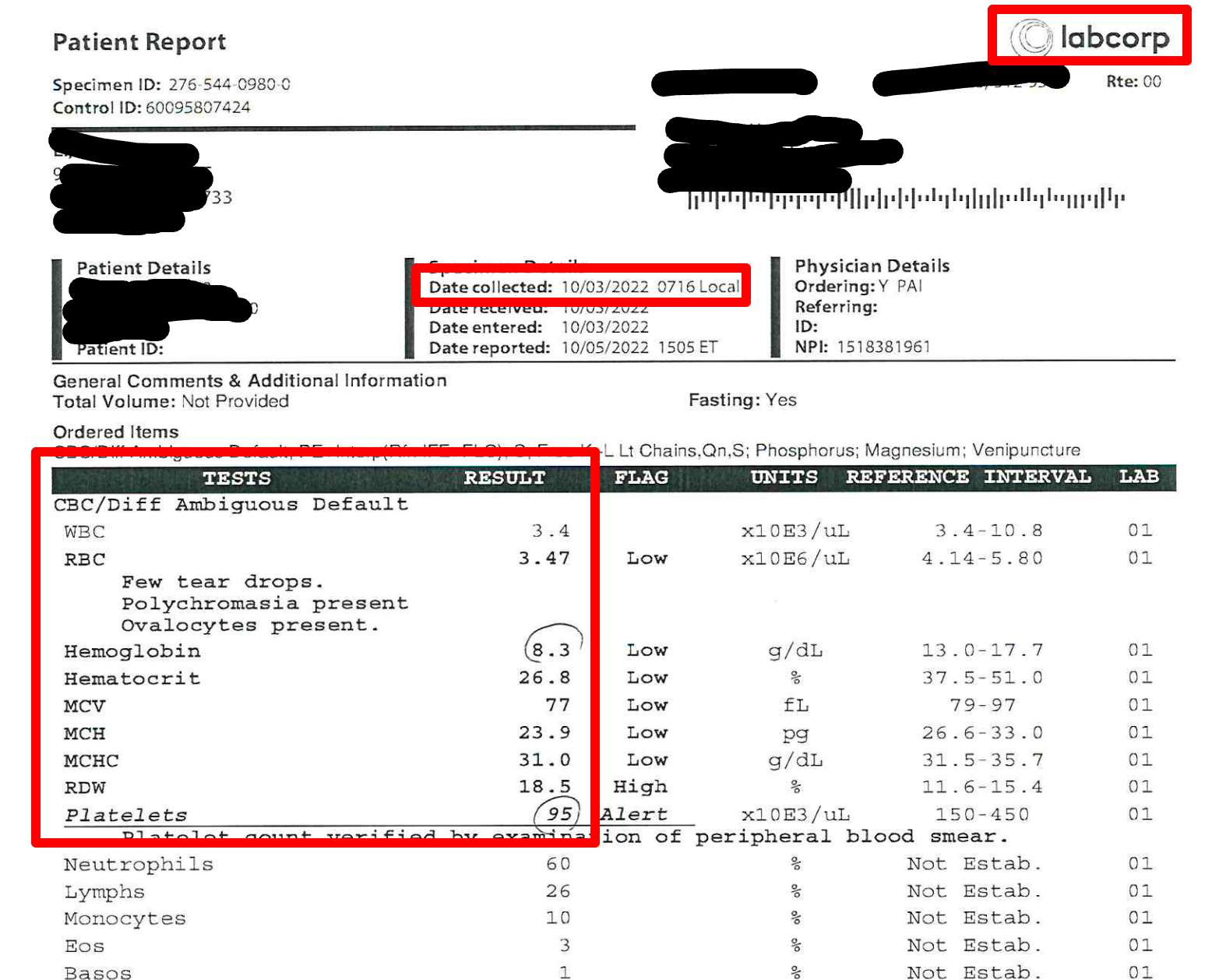
Date/time collected
Lab test names and corresponding results
After creating the record within the subject’s casebook, the lab normals will get processed if normals have been setup for that site. If no lab normals are defined, only the test results/values will get imported.
How data on a lab form is populated
The lab form populates the info as described here.
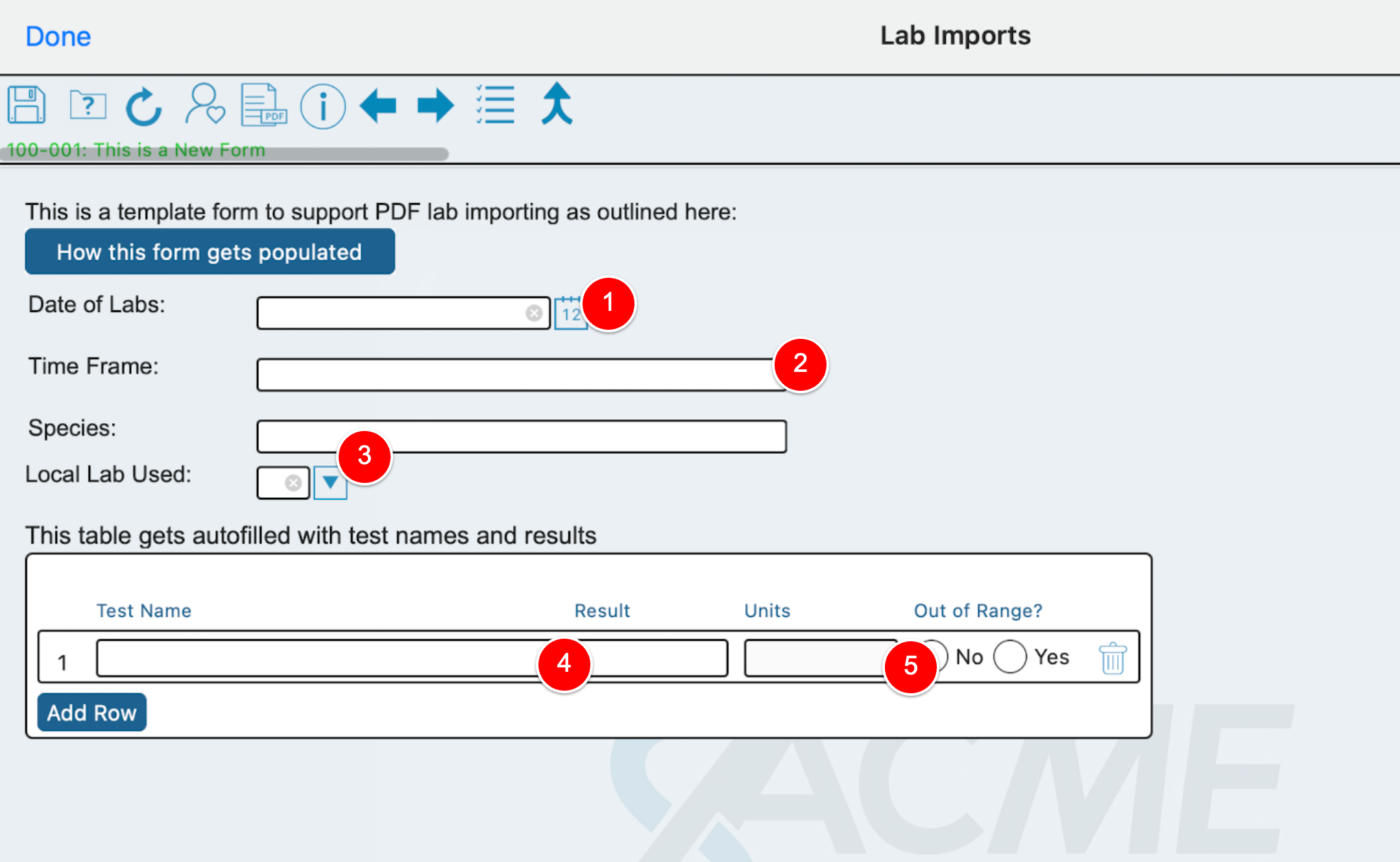
1- Date of collection taken from the header area of the PDF
2- Text data taken from the file name as described above.
3- Text data populated from the header area of the PDF. This could be a lab name in clinical work, or species in preclinical work
4- The lab test name and result as taken from the PDF
5- The units and range indicator are not pulled from the PDF, but are instead run by TrialKit’s separate lab range checks. Read more here.
This example PDF highlights the info that the system is using: