Scheduling On-site or Virtual Meetings With Study Participants
TrialKit allows sites to directly coordinate calendar events with study Participants. It allows sites and Participants to have a shared calendar system, where the site can schedule a physical visit on site, a phone call, or a video meeting. Even if the Participant does not use the study calendar on a day to day basis, it is how they can access their virtual visits.
Clinician Access to the Study Schedule
Prerequisites:
Study is enabled for scheduling by the Administrator
User has Access To Participant Scheduling and Create New Events
Access the scheduler via the button at the top of the Subject Manager.
Web | App |
|---|---|
|
|
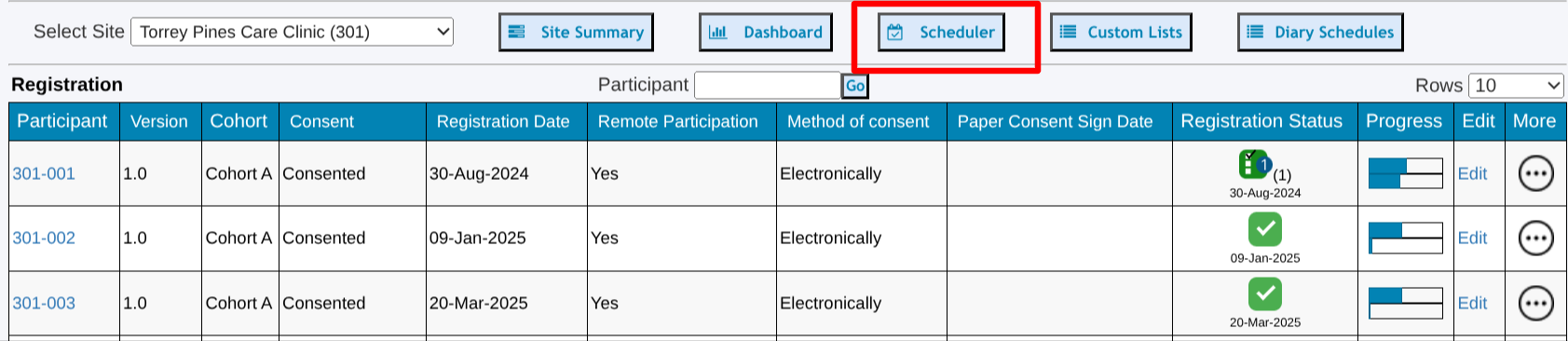
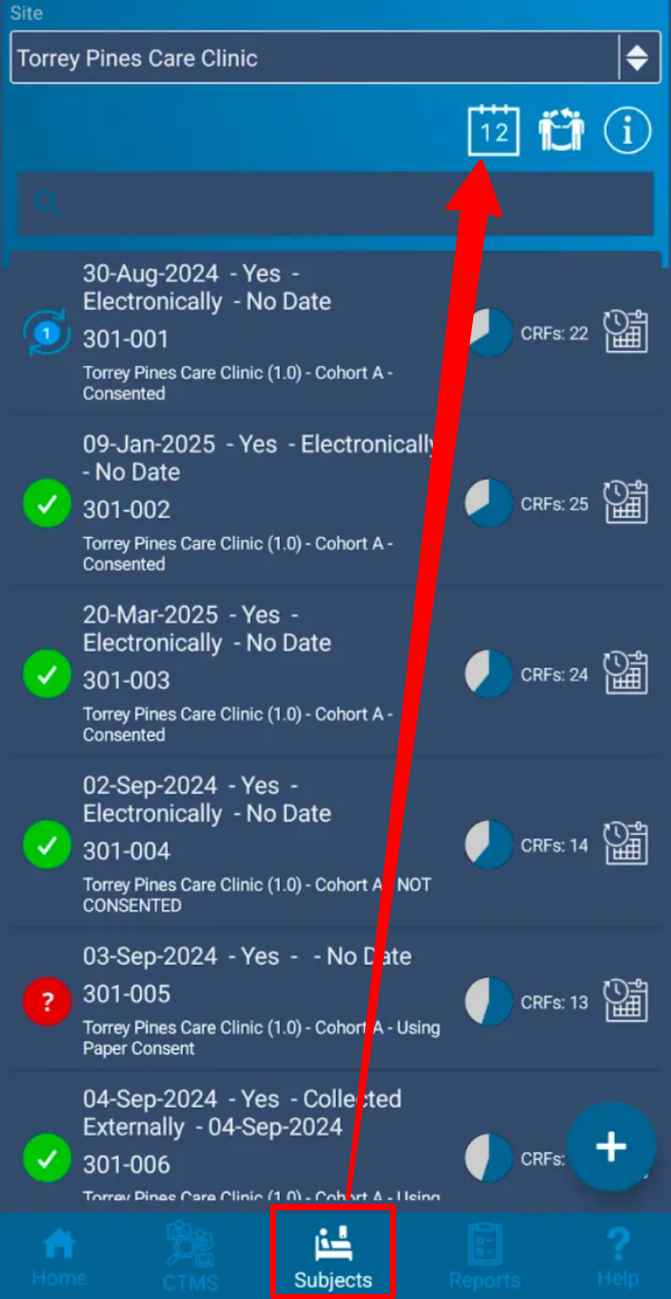
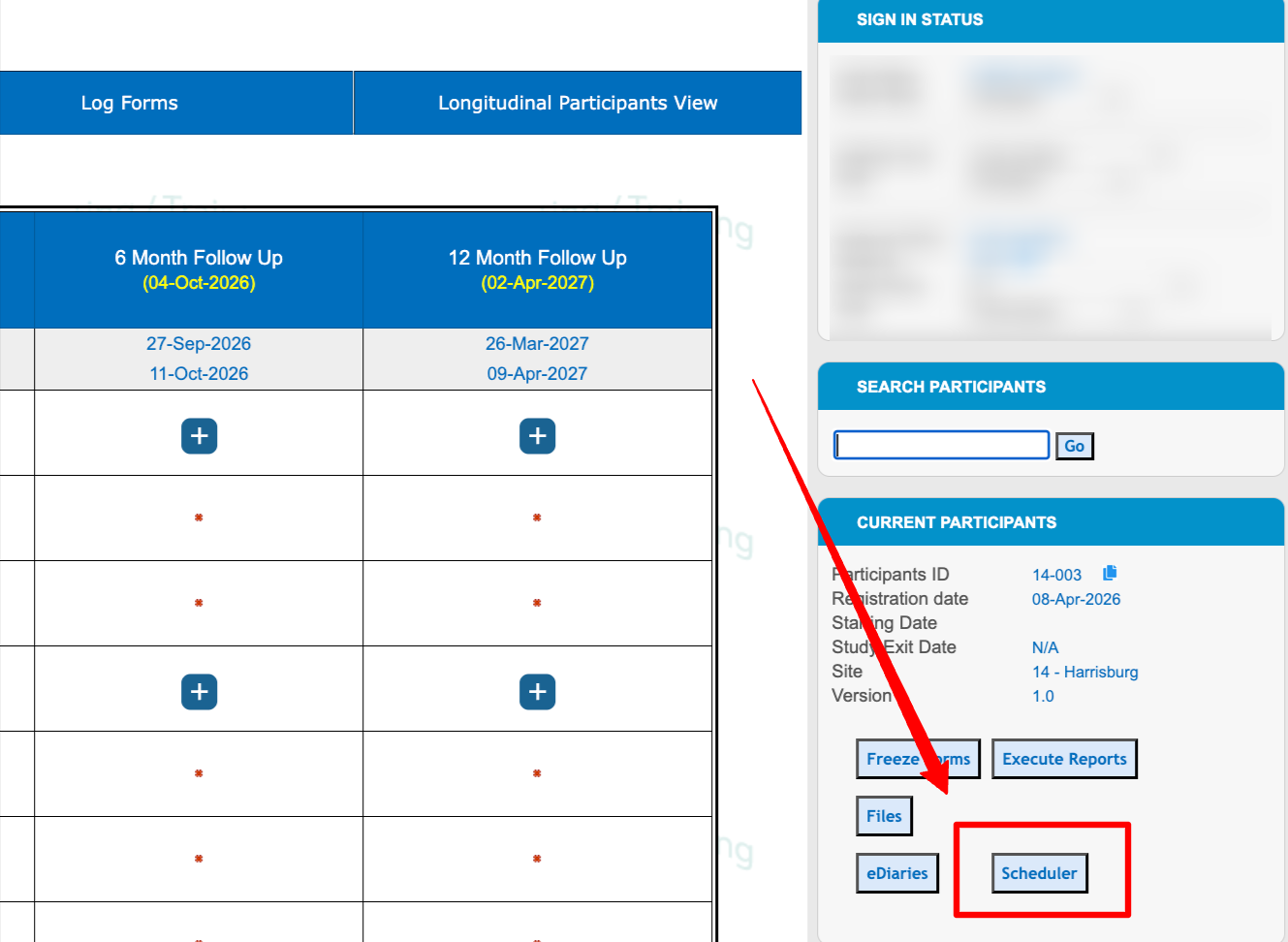
It’s also accessible within the subject’s casebook. Note, events can only be scheduled for the current subject if accessing the calendar from here.
Once open, use the scrolling arrows to navigate to other months (swipe gesture on the app).
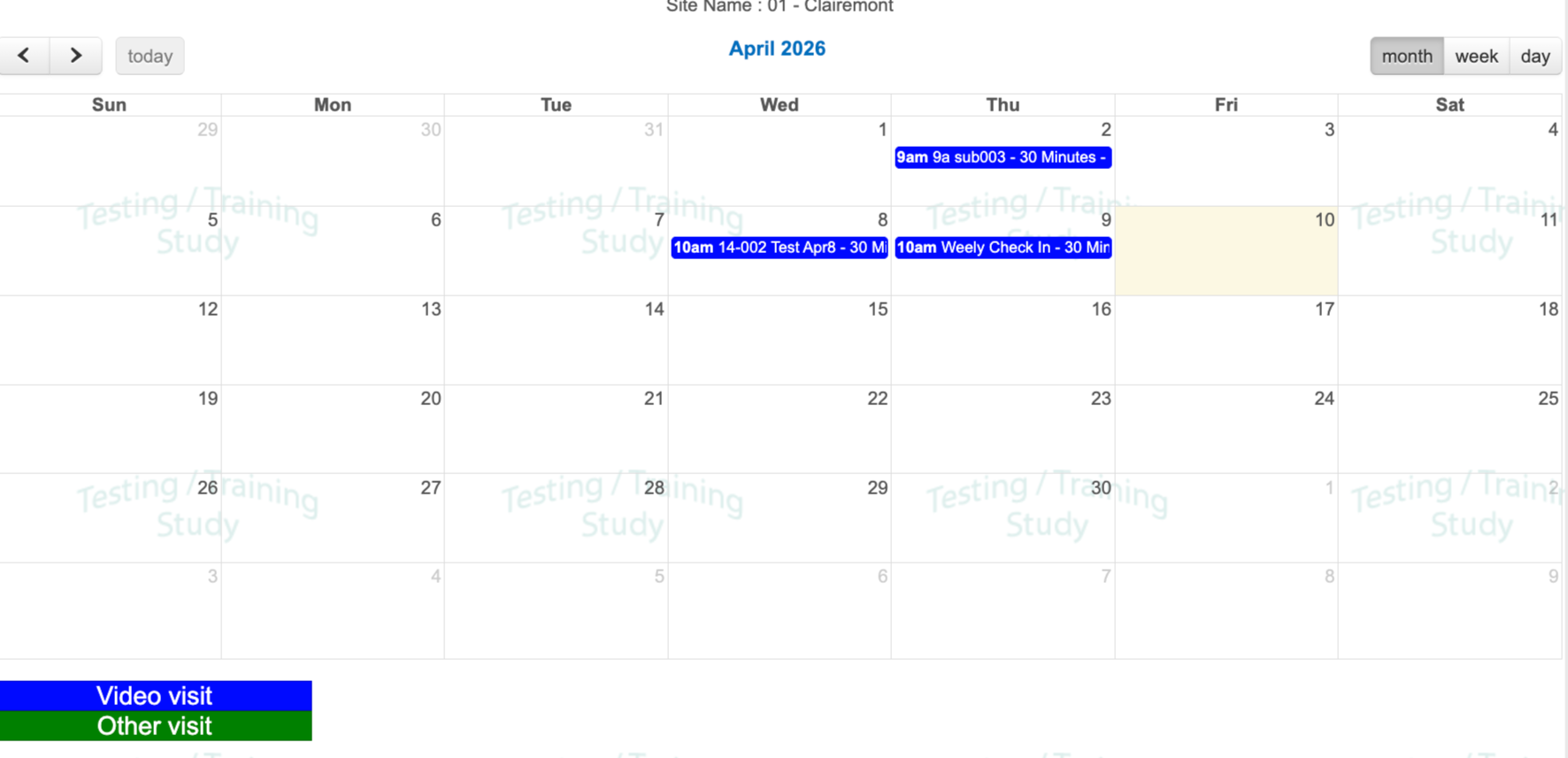
Tap a day to open the blocks of time for scheduling a time within that day, or tap an existing event to open up the details.
Scheduling a Visit for a Participant
Prerequisites
User has access to Create Calendar Events
The ability to create, modify or delete events are permissions that must be granted by a Study Administrator.
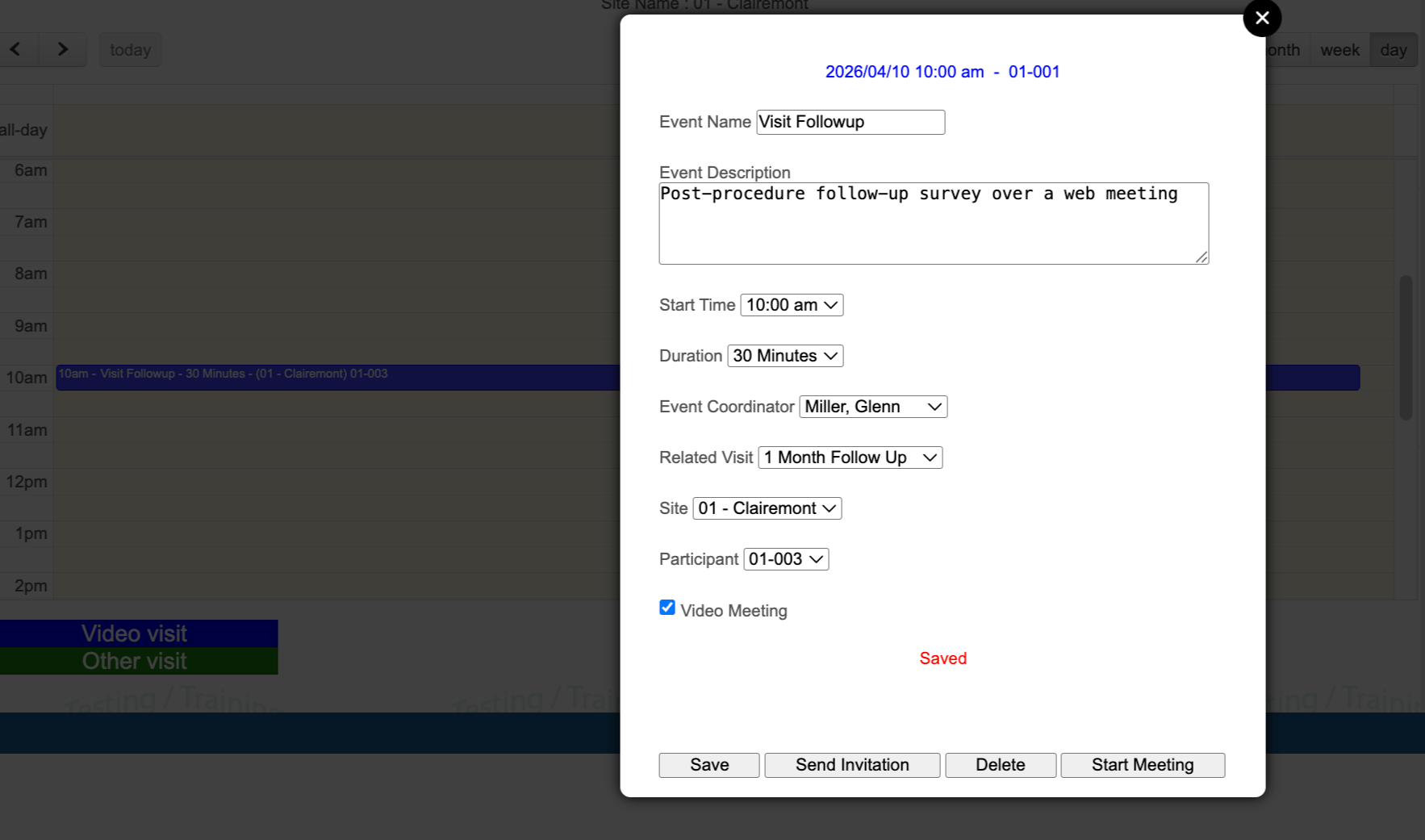
In the day view, tap on any hour block to create an event within that hour.
An event in the calendar could be a physical visit on site, a phone call, or a video meeting. For the first two, add any necessary notes in the event description, such as location, phone number, or other helpful info for the Participant.
The Participant will have access to the event details and also receive them via email if there is a known email address and if the invite is sent, as shown below.
Couple of Tips
It's helpful to Participants if there are directions about the visit or what to do if they encounter technical problems.
Create an event without assigning it to a specific site or subject, in order to create a placeholder event for later.
Assigning a Clinician to the event
Optionally, a Clinician can be assigned to the event to help differentiate event ownership at the site. Reminder notifications (if enabled in the study) will be sent to both the Clinician and the Participant via email and text.
Example
In this example, a visit is being scheduled as a video meeting. Checking that box is not necessary for physical on-site visits.
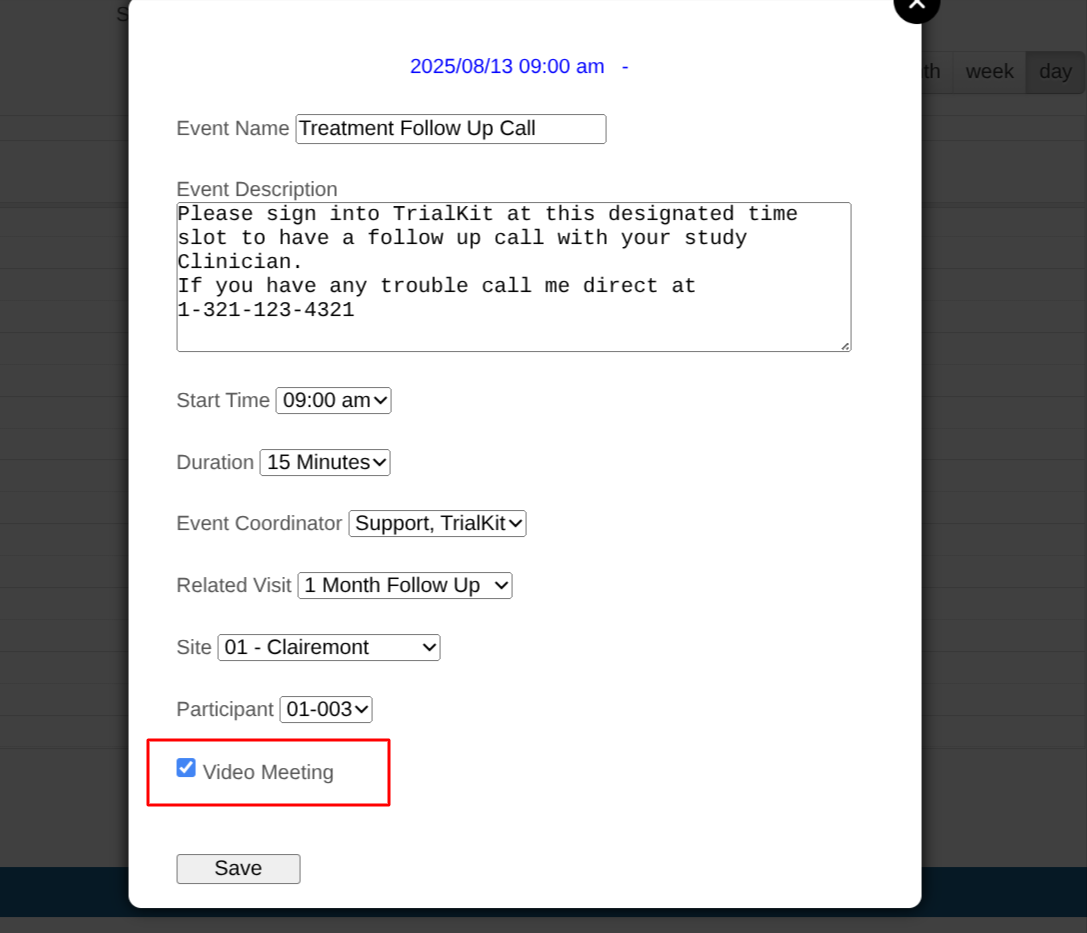
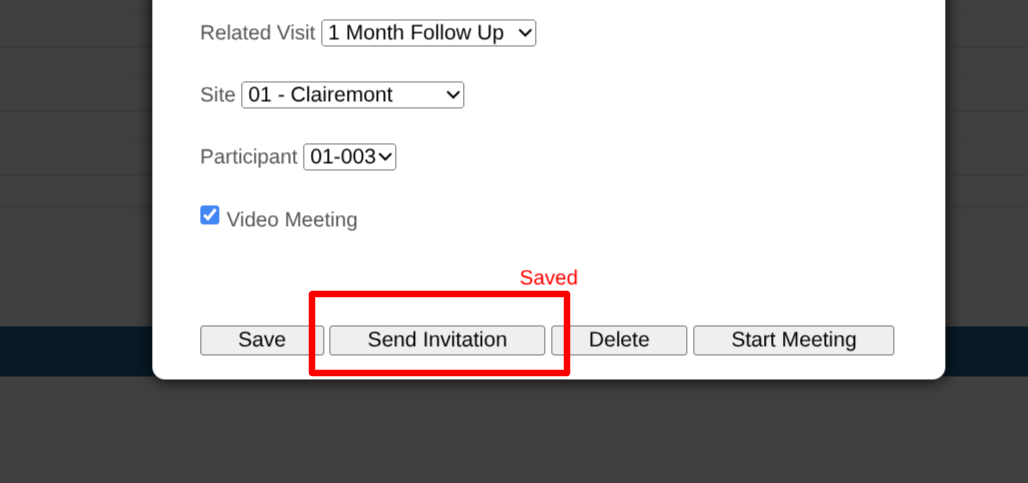
If the meeting is a video meeting like the example above. Once saved, there are additional options - one of which is to send the event details to the Participant, which will allow the Participant to accept it in their personal calendar outside of TrialKit.
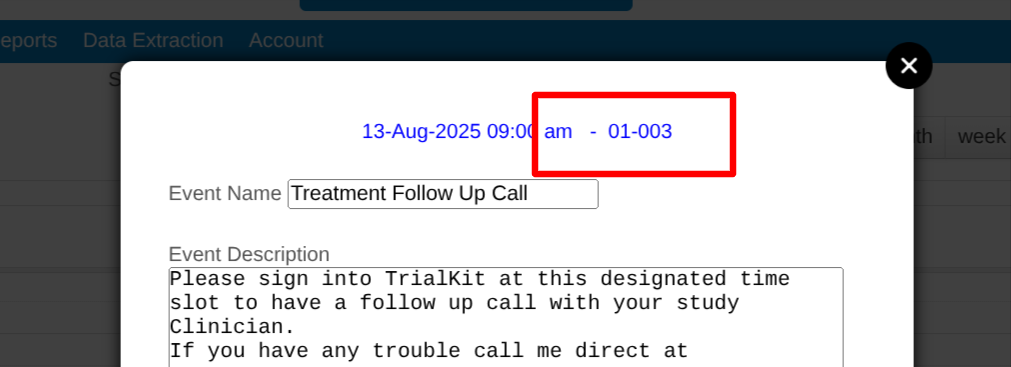
Once an event is scheduled, the title at the top will display which subject the event was saved for. This is helpful for verification to ensure the correct subject ID was selected.
Visit Reminders
For events that are scheduled on the calendar, by default no reminders will be sent unless the study Manager has configured reminders to go out at defined intervals prior the event. This section describes how the study Administrator can define reminders for events that get created in the study settings.
For example, a reminder might be needed 2 days in advance of an event, again 1 hour in advance, and again 10 minutes in advance.
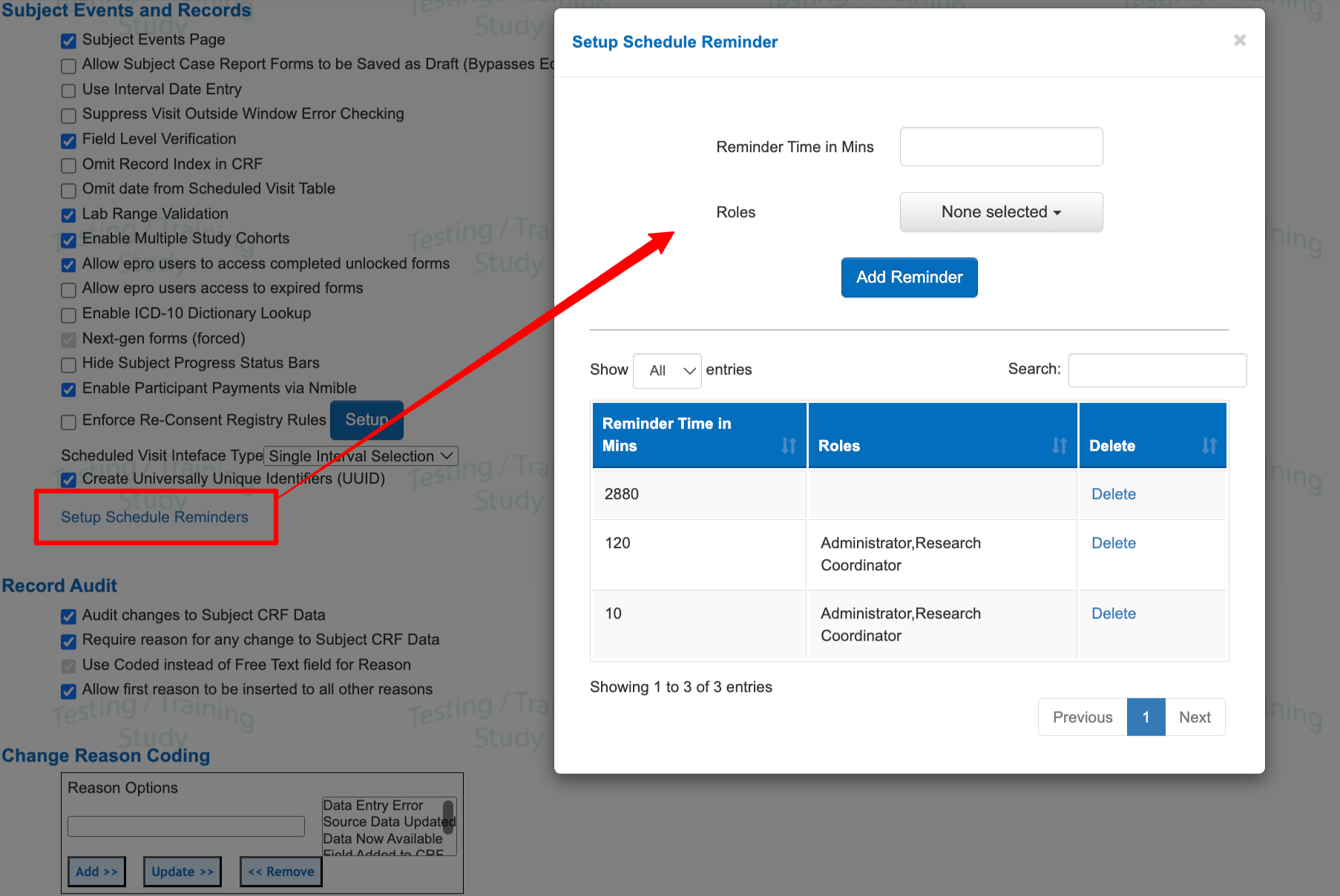
If reminders are configured without any roles defined, the notifications will get sent to both the assigned Clinician user and the Participant email address. A phone text message will also be included if the users have set their phone number in their user preferences.
To included other users in the notification reminder, include additional roles as the example above. In the example, the Admin users and all Site Coordinators at the site will get the 2-hour reminder and the 10-minute reminder. The 2-day reminder will only go to the Participant and assigned Coordinator.
Reminders for existing events
If reminder rules are deleted, added, or updated, it will only apply to calendar events added after that point. Existing calendar event reminders will not be changed.
Joining a Scheduled Virtual Video Visit/Meeting
If a calendar event was setup as a video meeting, the meeting can be started from the event itself.
.png "image(225).png")
The Participant will also have access to their calendar and video meetings. Instructions for Participants can be found here.
Read more about Video Meetings here.
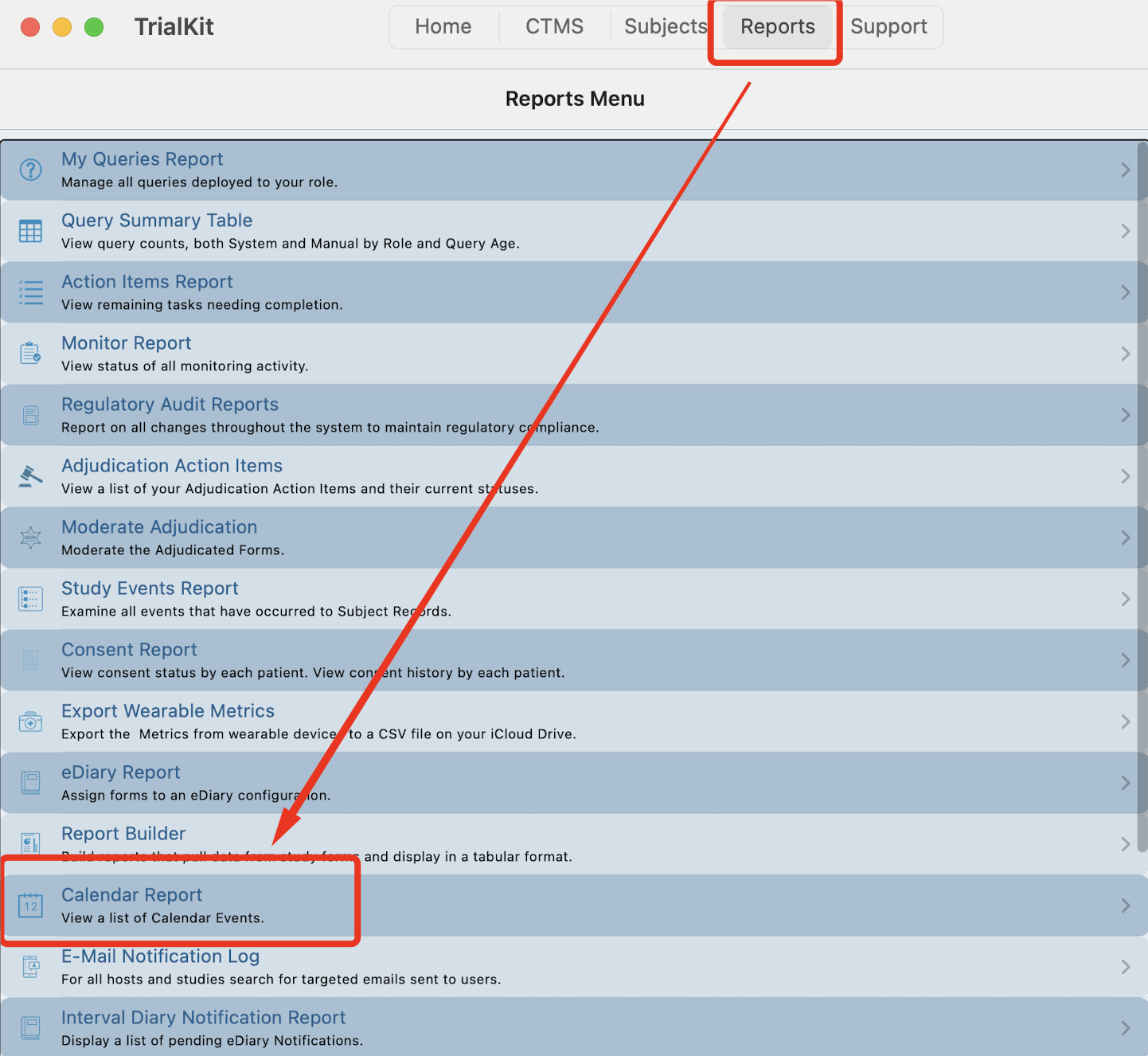
Calendar Report
A report is available to display a table listing of all calendar events and details, based on permission being granted by a Study Administrator.
From there it can also be exported as an Excel file for any further reporting or to import events into an external calendar.
Web | App |
|---|---|
|
|
.png "image(228).png")
Study Administrators - Setting up the Calendar and Permissions
Setting a study up with an implemented calendar is as simple as assigning users with the necessary permissions to access it.
Here is a common configuration for a site-level role:
.png "image(229).png")
This of course depends on the use-case. For example, if events (or 'time slots') can only be created by an Administrator, it would be necessary to only allow site users to Modify events rather than Create them.
Importing An External Calendar
Sometimes it may be necessary to import events from another calendar. For example, a study Administrator may want to create ‘placeholder' events for sites to later go in and assign to a specific site and subject, rather than the sites freely creating events at any time. The ability to import is based on permission granted by a study Administrator. With that permission, an option will appear on the main calendar screen.
Web | App |
|---|---|
|
|
.png "image(230).png")
.png "image(231).png")
This will open an option to select a file for importing.
Imports are accomplished by a standard calendar ICS file format, which most calendar platforms export. This file can then be imported into TrialKit’s calendar. When this is done, the following attributes are imported:
Event name
Description
Date/Time
Duration
A few important notes:
Multi-day events will only import the first day
Recurring events are not supported. Only the first event will be imported
Site and subject information cannot be imported from an ICS file. Those will need to be manually set within the TrialKit calendar after importing
ICS files exported from external calendars will include everything in history and the future. Most calendars do not allow for exporting a specific time range, which is why it's important after exporting the file to remove any events that do not need to be imported into TrialKit.
"